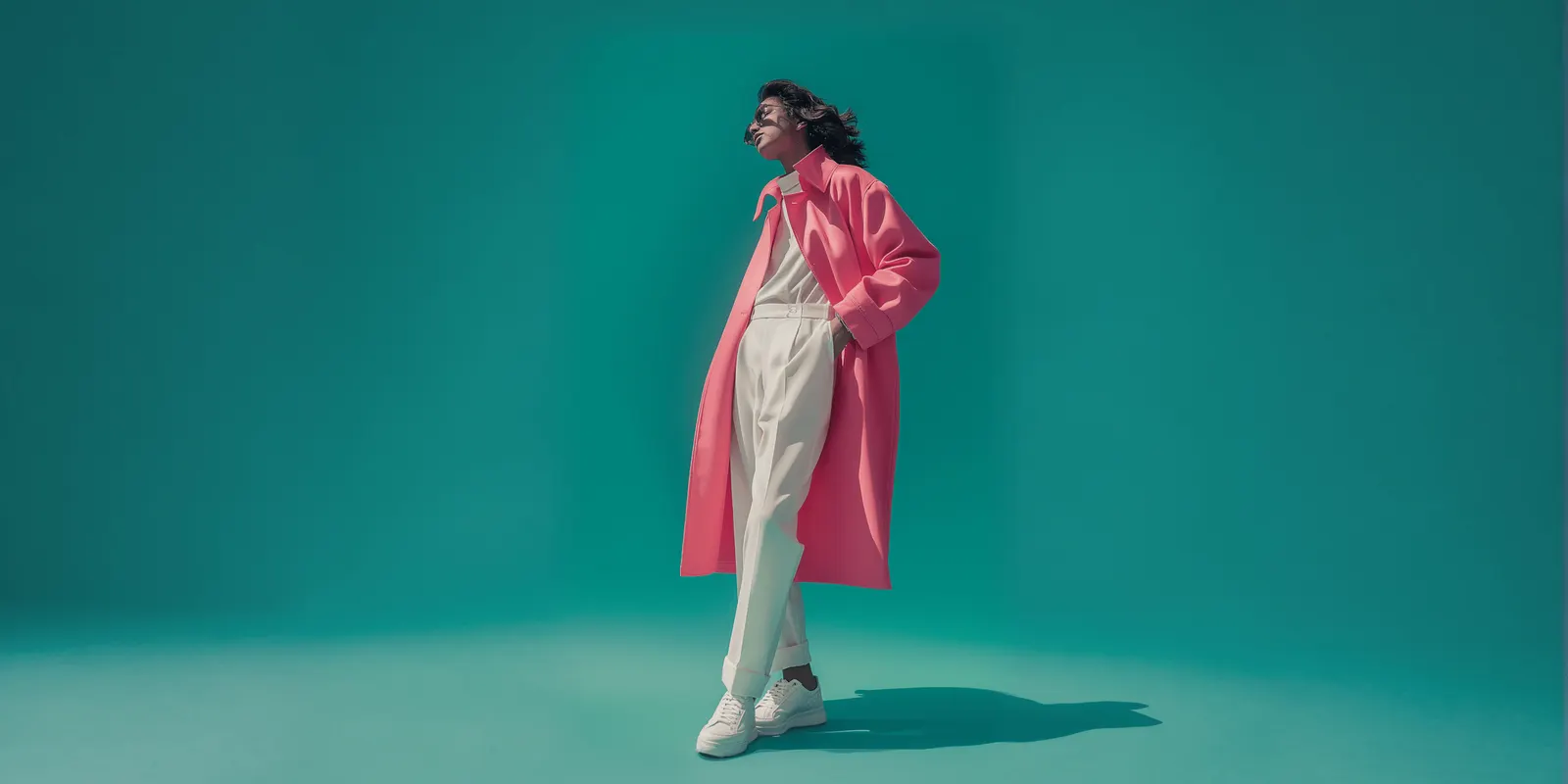
A virtual try-on video shows a model wearing your garment and moving. You make it in two steps. A try-on step puts the garment from one photo on the person from another photo, and returns a still. An image-to-video model then animates that still. The garment photos you give it decide which motions stay true to the real garment.
A new drop has 30 dresses, and each product page needs a short clip of a model wearing the dress. The first test clip looks right in the preview. At full size, the print on the skirt has changed by the last second. The back of the dress, which no photo showed, now has a zip that the real dress does not have.
This guide covers both steps, the motions each set of garment photos can support, six checks that catch a wrong clip, and the rules for using a real person’s photo. It is written for apparel brands with 20 to 500 products, and for the agencies that make their product videos.
Key Takeaways
- Two steps, two approvals. Approve the try-on still against the flat garment photo. Then approve the last frame of the clip against that still.
- The garment photos set the motion. A front photo supports a pose or a walk toward the camera. A turn needs a photo of every side it shows.
- A back view can be the last frame. Veo 3.1 and Kling 2.6 accept a first and a last frame, so a turn can end on a back view you approved.
- Describe the motion only. Runway’s Gen-4 guide says that repeating details already in the image can reduce motion.
- Check the last frame at full size. The first frame is your approved still, so it always looks right. Changes appear later in the clip.
- A walk toward the camera is the safest walk. The photo already shows the front. Keep both feet in the frame and the steps slow.
- A real person’s photo needs consent. Some video models also limit the faces they accept.
What is a virtual try-on video?
A virtual try-on video is a short clip of a person wearing a garment that nobody photographed on them. The usual route has two steps. A try-on image model puts the garment on the person. An image-to-video model then animates the result. Research models can do it in one step, from a garment image and a video of the person.
You can build the two-step route today from vendor APIs. Kling, for example, offers a virtual try-on API that takes a clothing image and a model image and returns a try-on image (Kling API docs, September 2026). The animation is a separate image-to-video run.
The one-step route is mostly a research topic. Google Research and the University of Washington published Fashion-VDM at SIGGRAPH Asia 2024. It takes “an input garment image and person video” and returns a video of the person in the garment (Fashion-VDM project page, September 2026). The ViViD paper names the problem both routes try to solve. It says image try-on applied frame by frame “will cause temporal-inconsistent outcomes”, and that earlier video try-on “can only generate low visual quality and blurring results” (arXiv 2405.11794, May 2024).
The same words also describe a shopper feature. Google lets shoppers upload a photo of themselves to see apparel on their own body (Google blog, May 2025). This guide covers the brand side: your garment on a model, for a product page or an ad. To change the garment in footage you already filmed, see AI video clothes changer tools compared.
| Step | You give it | It returns | What goes wrong |
|---|---|---|---|
| Try-on | A garment photo and a person photo | A still of the person in the garment | Print, logo, color, length and fit change |
| Image to video | The approved still, and a last frame if the model takes one | A clip of 2 to 15 seconds, by model | The garment drifts, and unseen sides are invented |
How to make an AI video of a person wearing an outfit from a photo
Six steps, in this order. The first three produce a still you trust. The last three turn it into a clip. How to plan, finish and export the product page, social and ad versions of that clip is in AI video for a clothing brand.
- Photograph the garment flat and sharp. Use even light and no creases across the print. The logo must be readable at full size. Add a back photo and a close-up of the fabric.
- Choose the person photo. Use a full-length photo, facing the camera, with the arms away from the body. Hands across the garment hide the detail the try-on step needs.
- Run the try-on step and approve the still. Compare it with the flat photo at full size: print, logo, color, neckline, buttons and length.
- Pick a motion your garment photos support. The table in the next section matches each motion to the photos it needs.
- Write a prompt about the motion only. Say what moves and what the camera does. Do not describe the garment again.
- Run a short clip and check the last frame. If the garment drifts, run again from the approved still. Do not extend a clip that has already drifted.
Steps 1 to 3 are the whole job for still images, and they are covered garment by garment in how to put clothes on a model with AI. A step-by-step version for fashion brands is on the page on-model photos without booking a model.
Why the garment photos decide which motions work
An image-to-video model sees one frame. Whatever that frame hides, the model has to invent as the clip moves. The general version of this test, for any photo, is in how to animate a photo with AI.
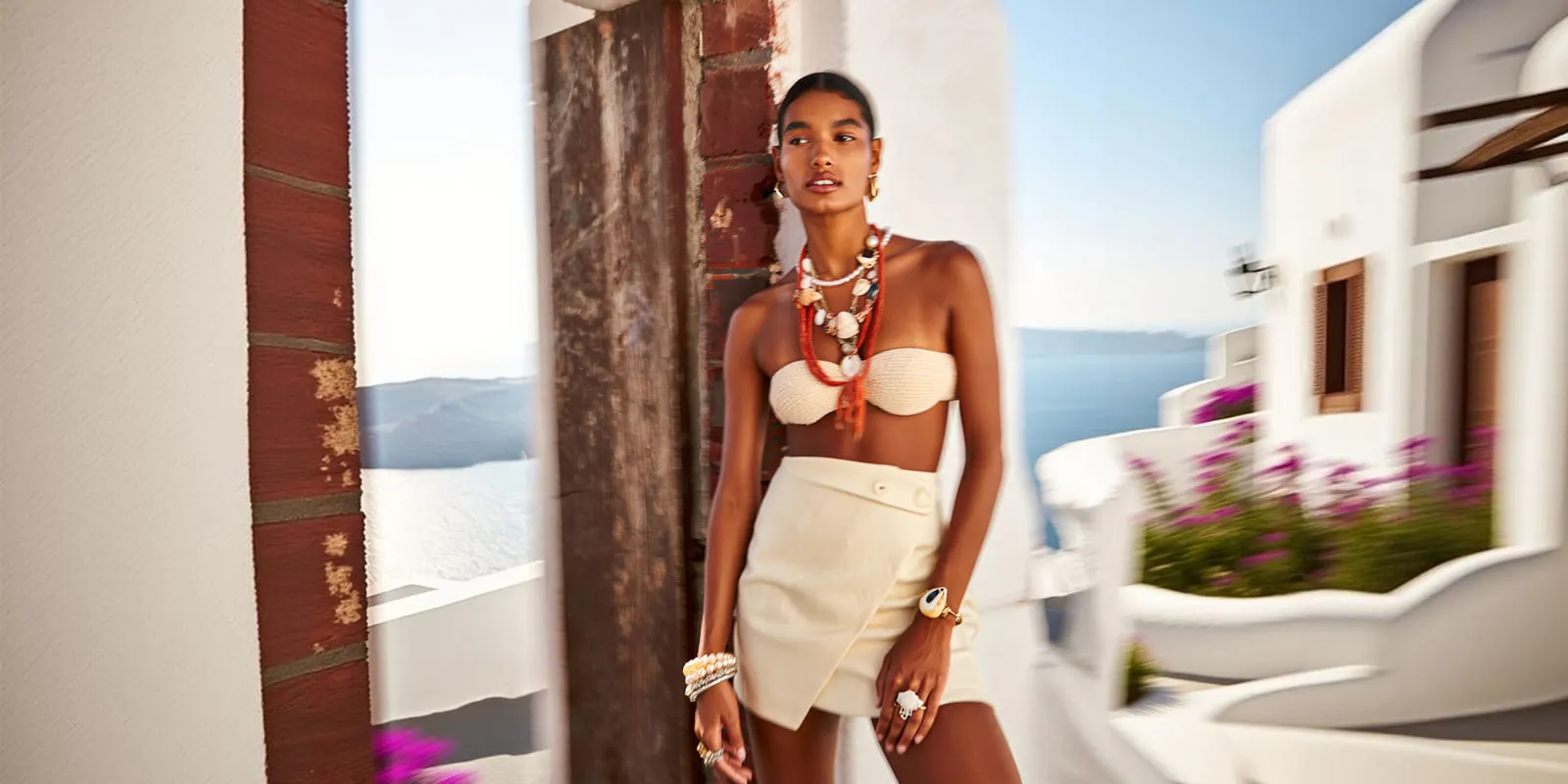
A try-on video has a second gap. The try-on step saw only the garment photos you gave it. So the still can already contain guesses, and the clip adds more.
A front flat shows the front. It does not show the back seam, the zip, the side panel or how the hem swings. A walk toward the camera keeps the front in view, so the video model mostly moves what it has seen. A turn shows the back. With no back photo, the back of your garment in the clip is a guess that looks real.
So the garment photos come before the motion list. Decide what each product page needs to show. Then photograph those sides of the garment.
Motions and the garment photos each one needs
Start from the garment photos you have, then pick the motion. The risk column is our own rating of how much of the garment the clip must invent.
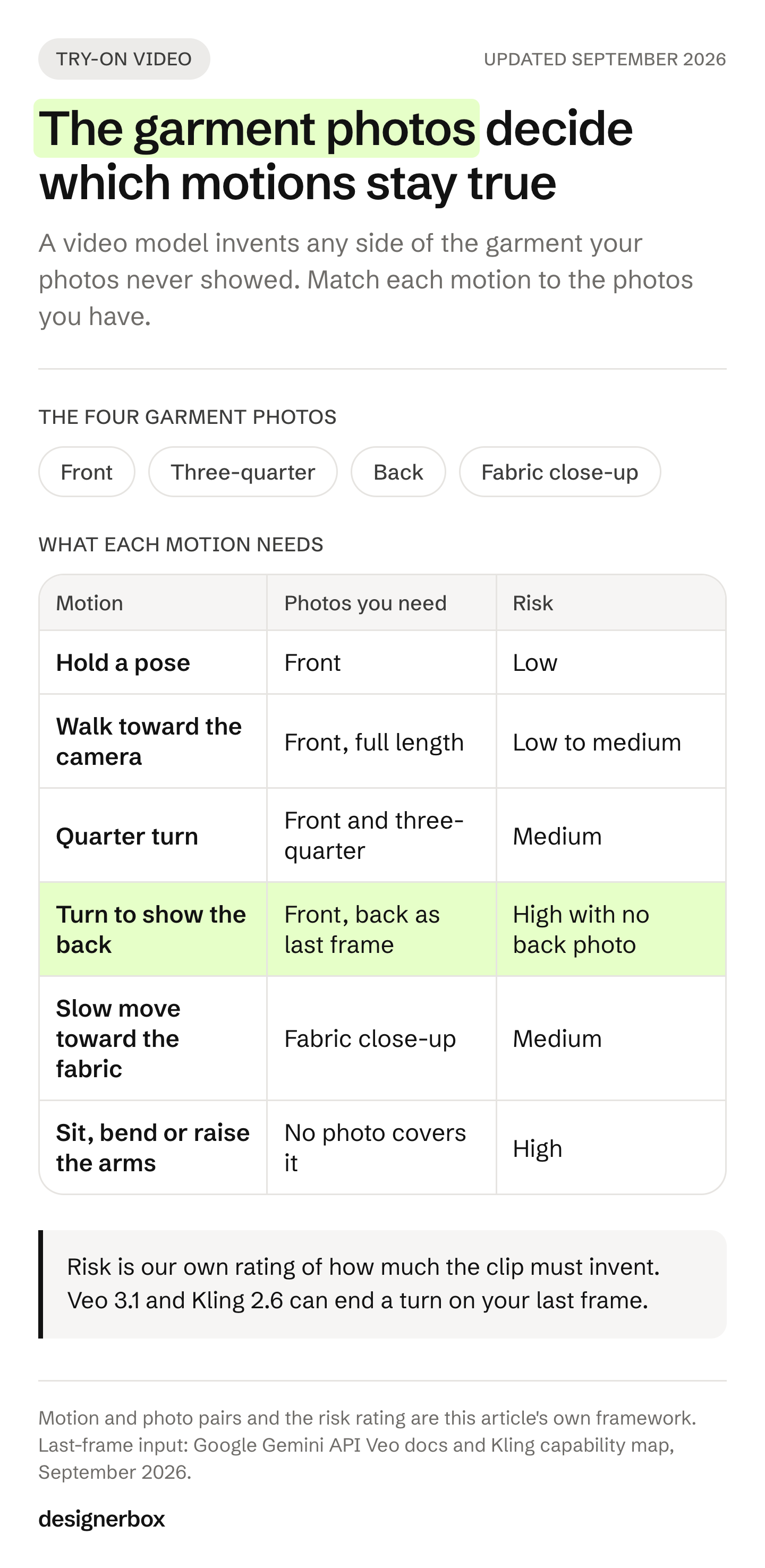
| Motion | What the clip shows | Garment photos you need | Risk (our rating) |
|---|---|---|---|
| Hold a pose: breathing, a small weight shift, hair moving | The front only | Front | Low |
| Walk toward the camera | The front, and the hem moving | Front, full length | Low to medium |
| Quarter turn | The front and one side | Front and three-quarter | Medium |
| Turn to show the back | Front, side and back | Front and back, with a back view as the last frame | High with no back photo |
| Slow camera move toward the fabric | Weave, print and trim at close range | A fabric close-up | Medium: fine detail changes first |
| Sit, bend or raise the arms | Folds and stretch no photo showed | No photo covers it | High: avoid for product pages |
For a turn, give the model both ends of the move. Veo 3.1 takes a lastFrame image, which Google describes as “The final image for an interpolation video to transition” (Gemini API Veo docs, September 2026). Kling 2.6 accepts a first and a last frame at 1080p, without audio (Kling capability map, September 2026).
Use the approved front still as the first frame. Make a second try-on still of the person from behind, with the back photo of the garment, and use it as the last frame. The model then fills the move between two views you approved.
Reference images are a third option. Veo 3.1 accepts up to three images of “a single person, character, or product”, and the clip must then be 8 seconds long (Gemini API Veo docs, September 2026).
Which video models accept a last frame or references?
Four details matter for try-on video: how long one clip runs, whether the model takes a last frame, whether it takes reference images, and what it accepts as a person photo. This table covers five models from four vendors, from each vendor’s own documentation.
| Model | One clip | Frames and references | For a try-on video |
|---|---|---|---|
| Veo 3.1 (Google) | 4, 6 or 8 seconds | First frame, last frame, up to 3 reference images | Image-to-video accepts adults only |
| Kling 2.6 (Kuaishou) | 5 or 10 seconds | First frame, or first and last frame at 1080p | No multi-image references |
| Kling 3.0 (Kuaishou) | 3 to 15 seconds | Up to 3 Elements, each from 2 to 4 reference images | 1 to 6 shots in one clip |
| Runway Gen-4.5 | 2 to 10 seconds | First frame only | Outputs 720p |
| Seedance 2.0 (ByteDance) | 4 to 15 seconds | Up to 9 images, 3 video clips and 3 audio clips | No direct upload of real human faces |
Sources: Gemini API Veo docs, Kling capability map, Kling 3.0 launch, Runway API docs, BytePlus Seedance docs, all read September 2026.
No vendor publishes a garment accuracy score, so no table can rank these models on how well they keep a print. Test each one with your own garment and check the result at full size. How the same models compare on product clips is in AI image to video for ecommerce.
What should the motion prompt say?
The prompt describes the motion and the camera. The still already carries the garment, so the prompt should not describe it again. Runway’s Gen-4 prompting guide says it directly: “Reiterating elements that exist within the image in high detail can lead to reduced motion or unexpected results in the output” (Runway Gen-4 Video Prompting Guide, September 2026).
Describe what you want to see. The same Runway guide says “Negative phrasing is not supported and may produce unpredictable or even opposite results”. Its example replaces “No camera movement” with “Locked camera. The camera remains still.” Google Cloud’s Veo prompt guide gives the same advice. It says to avoid words such as “no” or “don’t” and to describe what you don’t want to see (Google Cloud Veo prompt guide, September 2026).
A prompt for a walk toward the camera can be four short lines:
- The model walks slowly toward the camera and stops.
- The coat moves with each step.
- Locked camera, full-length framing.
- Soft daylight from the left.
More structure for longer prompts is in the AI video prompting guide.
How to make a walking video from a single photo
A walking video from a single photo starts with one full-length still of the model in your garment. An image-to-video model then moves the model a few steps. The direction of the walk decides which side of the garment the clip shows. A slow walk toward the camera is the safest choice, because the photo already shows the front.
Search results for this phrase also show “walk effect” apps that make a photo walk for a social post. A product clip has a stricter job. The garment in the last step must still be your garment.
Pick the direction first. Each direction needs different garment photos and a different camera line.
| Walk | What the clip shows | Stills you need | Camera line for the prompt |
|---|---|---|---|
| Toward the camera | The front, and the hem moving | A full-length front still | Locked camera, or a slow dolly out that keeps the distance |
| Across the frame | One side of the garment | A front still and a three-quarter garment photo | The camera moves sideways with the model |
| Away from the camera | The back | A back view as the first frame | Locked camera |
| Walk, stop and turn | The front, then a side, then the back | The front still first, a back still as the last frame | Locked camera |
Google’s Veo prompt guide names both camera moves. A dolly is when “the camera physically moves closer to the subject or further away”. A truck moves the camera sideways, as in “truck right, following a character as they walk along a busy sidewalk” (Google Cloud Veo prompt guide, September 2026).
Prepare the still for a walk. Three things in the still matter more for a walk than for a pose.
- The feet and the floor. Keep both feet in the frame, with some floor below them. A crop at the ankle means the model must invent the feet on every step.
- Space in the direction of the walk. A model who walks toward a locked camera grows in the frame. Leave room above the head, or use the dolly out.
- The shape of the final clip. Make the still in the same aspect ratio as the clip. Veo 3.1 makes 16:9 and 9:16 video (Gemini API Veo docs, September 2026). A clip for Reels or a phone product page is usually 9:16. For Instagram’s size, label and reach rules, see AI video for a clothing brand’s Instagram.
Keep the walk slow and short. A Stanford and Peking University benchmark scored human motion from commercial and open-source video models, Veo 3.1 Fast and Kling 2.5 Turbo Pro among them. Real videos scored 94.3 and the best model 91.1. Walking is one of its 51 test motions, and the easy version asks for “small, even steps and slow arm swing at an easy cadence” with a locked camera. The authors found that “models that generate highly dynamic motions often sacrifice anatomical correctness (e.g., bone-length consistency) or kinematic smoothness” (HumanScore, arXiv 2604.20157, April 2026). A slow walk of a few steps asks for less of that motion. If the model barely moves, try another model before you ask for a faster walk.
Four to eight seconds holds a few steps and a stop. Veo 3.1 can extend a clip by 7 seconds at a time, but only at 720p (Gemini API Veo docs, September 2026). Each extension is one more chance for the print to change, so a product page is better served by one short walk.
A prompt for a walk across the frame can look like this:
- The model walks slowly from left to right, then stops and faces the camera.
- The skirt swings with each step.
- The camera moves sideways with the model, full-length framing.
- Even studio light, plain gray backdrop.
Four checks that only a walk needs. Run them with the six checks below.
- Feet. One foot stays on the floor while the other steps. The same paper calls a foot that slides along the floor “foot skating”.
- Legs. Watch the frames where the legs pass each other. Count two legs, and check that both keep the same length.
- Hem. The hem moves with the step. A heavy wool coat swings less than a silk skirt. If it moves like a different fabric, the shopper learns the wrong thing about it.
- The stop. The model comes to a stop and the garment settles. Check the garment again in that last frame, because the clip ends on it.
How to check a try-on video before it ships
A try-on clip exists to show fit and length. Baymard’s testing found that without a human model, users “cannot accurately determine critical product attributes, such as the product’s fit and length” (Baymard Institute, December 2020). A clip that changes the length or the print gives the shopper wrong information. Run these six checks on every clip.
- Compare the still with the flat. Check print, logo, color, buttons, neckline and length at full size, before you animate.
- Check the last frame. The first frame is the still you approved. Any change appears later in the clip.
- Check every side the clip shows. If the back appears, compare it with the back photo. With no back photo, treat the back as unchecked.
- Watch the hands. A hand that crosses the garment hides the print. After the hand moves, the model has to draw the print again.
- Compare the face with the person photo. A face can change during a turn. How to hold one person across shots is in keeping characters consistent in AI video.
- Check the color against the real garment. Hold the garment or a fabric swatch next to the screen.
When a clip fails, run it again from the approved still. A new run from a good still is faster to check than a repair of a bad clip.
Rules for using a real person’s photo
A photo of a real person adds two limits: what the model accepts, and what the law requires. This is general information, not legal advice.
What the models accept. In Veo 3.1, image-to-video, interpolation and reference images accept “allow_adult” only (Gemini API Veo docs, September 2026). Seedance 2.0 does “not support directly uploading reference images or videos that contain real human faces” (BytePlus docs, September 2026). ByteDance allows some routes, such as real people who pass its consent and face check.
Consent. In New York, you need a person’s written consent before you use their name, picture or likeness in advertising (New York Civil Rights Law section 50, September 2026). California requires prior consent for the same use (California Civil Code section 3344, September 2026). Since 19 June 2025, New York’s Fashion Workers Act requires separate written consent before a model’s digital replica is made or used. The consent must state the scope, purpose, pay and how long it will be used (New York State Department of Labor FAQ, September 2026). A model release for this use is covered in the model release form guide.
Labels. Article 50 of the EU AI Act has applied since 2 August 2026. A deployer who publishes a deep fake must say it is AI-generated or AI-edited, clearly and the first time people see it (European Commission FAQ, September 2026). The Commission’s guidelines, published 20 July 2026, treat “realistic AI-generated human avatars or personas” as persons. They say it is enough that the person “can plausibly exist” (Commission guidelines on Article 50, September 2026). In New York, whoever produces an ad must disclose a synthetic performer in it, when they know it is there (New York General Business Law section 396-b, in effect since 9 June 2026). A synthetic performer is a digital person who is not recognizable as any real performer, so the rule covers an invented AI model. TikTok asks advertisers to label ads with AI-generated or heavily AI-edited media (TikTok ads policy, September 2026). Where each label goes is in labeling AI-generated fashion images.
The same clip for every garment
DesignerBox is AI creative production for brands and agencies. Scale your images, ads and video with AI and keep your brand on every piece: build the workflow once with your brand rules, run it on every product, see the cost before each run, and keep everything from the first product photo to the finished ad in one place.
Anyone can make an AI picture. Making hundreds that still look like your brand is the hard part. For try-on video, that means the same model, the same motion and the same framing on garment one and garment thirty.
The garment views come first. Clothing catalog turns one garment into four shots: front, three-quarter, back and a fabric close-up. Those are the views the motion table asks for. If you add only a front photo, the back shot is a guess too, so check it against the real garment before you use it as a last frame. Virtual try-on puts a garment on a model. The Dress my model app gives a colleague a form for the same job.
The video step animates the approved still. The workflow picks the video model for each step, and fashion video gives you ready-made motion types for a garment on a model. The video editor is a real timeline, with several tracks, transitions, animated text and audio, so the clips become one product video.
You set the brand once, and the workflow reads it on every run. A saved workflow runs the same way on the next garment, and batch runs it over the whole sheet at once. You keep or discard per row, and re-run one row alone. Three critic steps score the results, and best-of-N keeps the best one. You still run the six checks above. No step replaces your own check of the garment.
The templates, the workflows, batch, the image editor, the video editor and the brand record sit together: the full workflow from the first product photo to the finished ad, in one subscription. What it makes for apparel is on the page for fashion brands.
The cost is shown before the run. An 8-second clip costs 40 to 560 credits, depending on the model. AI video and virtual try-on start on the Premium plan, and the free plan cannot make video. The commercial license starts on the Pro plan. Team features, shared brand kits, white label and the API are on the Ultra plan, and every plan below Ultra is one seat. Plans and credits are on the pricing page.
A free plan for your first run
Start from a template, add your brand and your products, and see the cost before you run it.
FAQ
How do I make an AI video of a person wearing a specific outfit from a photo?
Use two steps. Run a virtual try-on step with the garment photo and the person photo, and approve the still against the flat garment. Then animate that still with an image-to-video model. Write a prompt that describes only the motion, and check the last frame at full size before you use the clip.
Can AI make a video of a model wearing my clothes?
Yes, from a photo of the garment and a photo of the model. The front of the garment is the most reliable part, because the photos show it. Any side the photos did not show, such as the back, is the model’s guess unless you add a photo of it.
Why does the print or logo change during the video?
The video model has to keep fine detail the same in every frame. A logo, a small print or a knit texture is fine detail, and it is often the first thing to change. Fix the still first, keep clips short, and run again from the approved still when the detail changes.
How long can a virtual try-on video be?
One run returns 2 to 15 seconds, depending on the model. Veo 3.1 makes 4, 6 or 8 seconds, Kling 2.6 makes 5 or 10, Runway Gen-4.5 makes 2 to 10, and Seedance 2.0 makes 4 to 15. For a product page, a short clip is easier to check. A longer video joins several clips in an editor.
How do I make a walking video from a single photo?
Start from one full-length still of the model in the garment, with both feet in the frame. Pick the walk direction first: toward the camera shows the front, away shows the back. Ask for a slow walk of a few steps, 4 to 8 seconds long. Then check the feet, the legs, the hem and the last frame.
Can I use a photo of a real person?
Only with their consent, and not with every model. Veo 3.1 image-to-video accepts adults only, and Seedance 2.0 does not accept direct uploads of real human faces. New York and California require consent to use a person’s likeness in advertising. New York’s Fashion Workers Act requires separate written consent for a model’s digital replica.
Do I need to label a virtual try-on video as AI?
The market and the platform decide. In the EU, Article 50 of the AI Act says a published deep fake must be disclosed, and a realistic invented person can count. In New York, an ad with a synthetic performer must say so. TikTok asks advertisers to label ads with AI-generated media.
Sources
All read September 2026 unless a date is given.
- Kling virtual try-on API, clothing image plus model image: Kling API docs
- Kling 2.6 durations and first and last frame at 1080p, Kling 3.0 Elements: Kling capability map and Kling 3.0 launch, PR Newswire
- Veo 3.1 durations, lastFrame, reference images and person generation: Gemini API Veo docs
- Veo prompt advice on “no” and “don’t”: Google Cloud Veo prompt guide. Dolly and truck camera moves: the same guide
- Veo 3.1 aspect ratios and 7-second extensions at 720p: Gemini API Veo docs
- Human motion in generated video, Stanford University and Peking University, 22 April 2026: HumanScore, arXiv 2604.20157
- Runway Gen-4.5 inputs and duration: Runway API docs. Resolution: Runway help, Creating with Gen-4.5. Motion-only prompts and negative phrasing: Runway Gen-4 Video Prompting Guide
- Seedance 2.0 durations and references: BytePlus Seedance docs. Real human faces: BytePlus docs
- Fashion-VDM, Google Research and University of Washington, SIGGRAPH Asia 2024: project page
- ViViD, video virtual try-on, 20 May 2024: arXiv 2405.11794
- Shopper try-on with your own photo, 20 May 2025: Google blog
- Fit and length need a human model, 1 December 2020: Baymard Institute
- EU AI Act Article 50 and the deployer duty: European Commission FAQ. Deep fakes and invented persons, 20 July 2026: Commission guidelines on Article 50
- New York synthetic performer disclosure: New York General Business Law section 396-b
- Consent for likeness in advertising: New York Civil Rights Law section 50 and California Civil Code section 3344
- Digital replica consent under the Fashion Workers Act: New York State Department of Labor FAQ
- TikTok AI labels in ads: TikTok ads policy
- Plan gates and the video cost range: DesignerBox pricing page (designerbox.ai/pricing), September 2026
Model capabilities verified from Google, Kuaishou, Runway and ByteDance documentation as of September 2026. Laws verified from European Commission, New York State and California sources as of September 2026. Model features change often, so check each vendor’s page before a production run. This is general information, not legal advice.