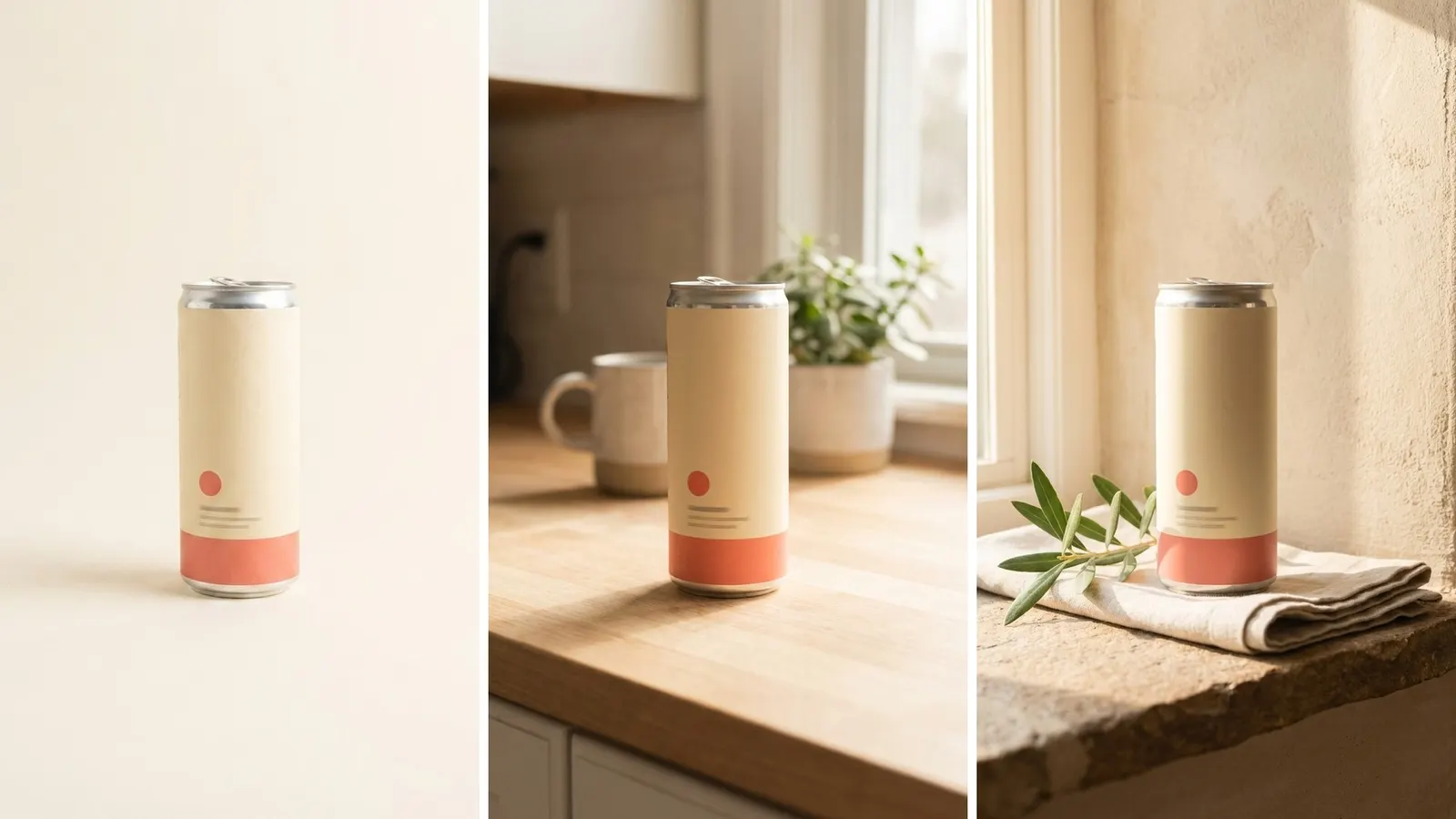
Image compositing is the joining of pictures from separate sources into one image that reads as a single photo. In product work, the usual composite is a product photo placed in a new scene. A composite is believable when the product and the scene agree on seven things: light, color, shadow, scale, perspective, edges and reflections. A brand team can check each one by eye.
A plain product photo that becomes a lifestyle image is a composite, whether a retoucher or an AI model builds it. This guide is for a brand with 20 to 500 products, and for the agency that makes its images.
Key Takeaways
- Seven things decide if it is believable. Light direction, color temperature, contact shadow, scale, perspective, edge quality and reflections.
- Three routes make a product composite. Manual work in an editor, an AI background generator around your cutout, or a full redraw of product and scene.
- Each route risks something different. The first two risk the join. The third risks the product itself.
- A scene composite is a supporting image. Amazon’s main image needs a pure white background, with the product at 85% of the image.
- Google has a metadata value for it. The IPTC value CompositeSynthetic marks a composite that includes synthetic elements.
What is image compositing?
Image compositing is the process of combining visual elements from separate sources into one image. Wikipedia’s definition adds the goal: “to create the illusion that all those elements are parts of the same scene” (Wikipedia, Compositing, October 2026). Adobe’s own explainer gives the photo version: composite photography is “the use or combination of two or more different images to create a new one” (Adobe Blog, June 2021, read October 2026).
The technique is older than software. The same Wikipedia page traces it to the trick films of Georges Méliès in the late 19th century.
Composite product photography is the commercial use of the same idea. The product is photographed once, on a plain surface. The scene is a second photo, a 3D render or a generated picture. Product compositing joins the two, so one approved product photo can appear in many scenes.
How is a composite image made?
A composite is made in four steps, whatever tool does the work: cut out, place, match and blend.
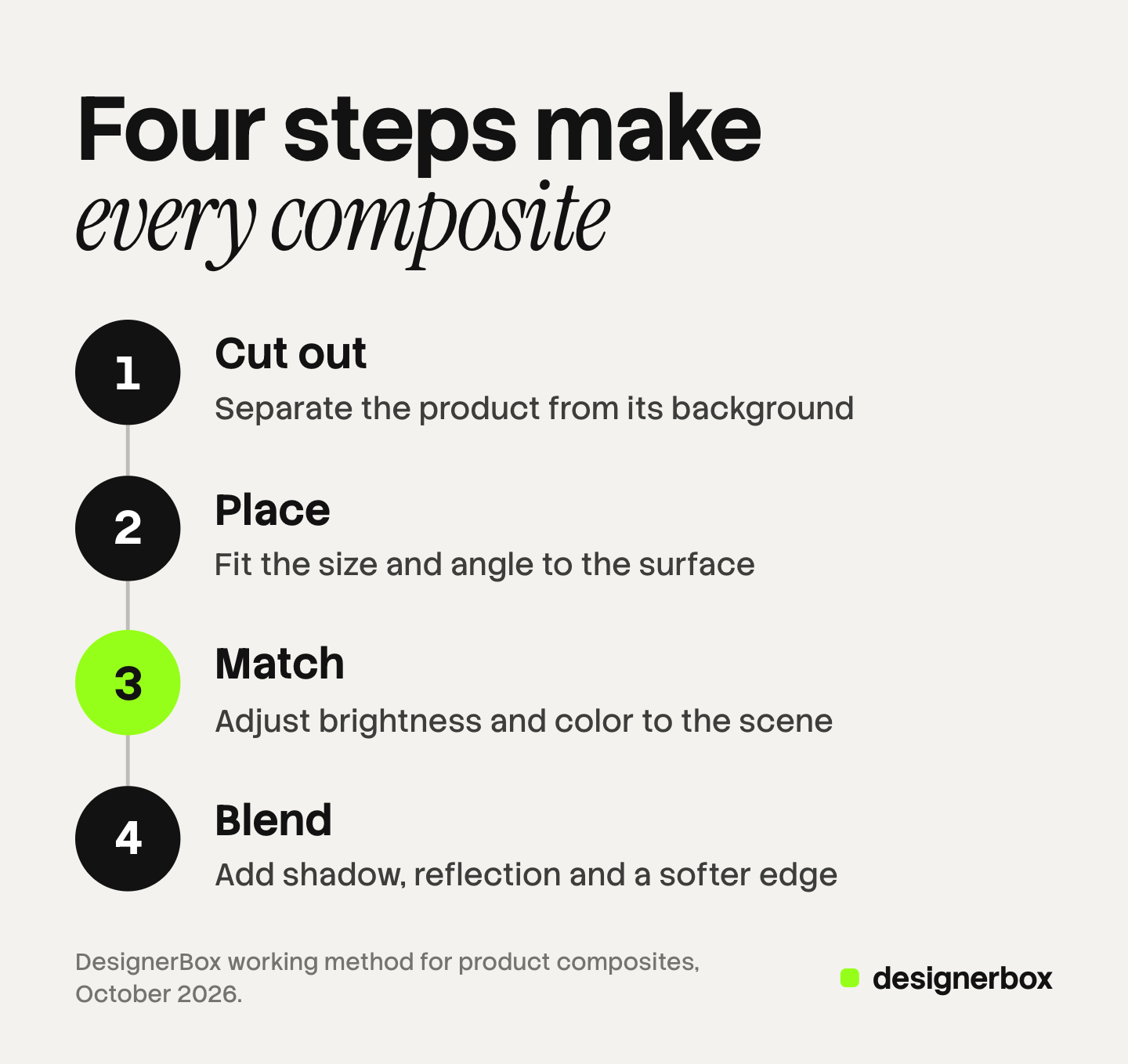
1. Cut out. The product is separated from its original background. The result is a picture with an alpha channel, which stores how transparent each pixel is. Digital compositing rests on that idea. A 1984 paper by Thomas Porter and Tom Duff defined the standard operators, including “over”, which lays one picture on another (Wikipedia, Alpha compositing, October 2026). Our guide to AI background removal covers this step and the products that break it.
2. Place. The cutout goes into the scene at a size and an angle that fit the surface.
3. Match. The product’s brightness and color are adjusted to the light of the scene.
4. Blend. A shadow, a reflection and a slightly softer edge tie the product to the surface.
A person does these steps with layers and masks. An AI model does them inside one request. Each step can still go wrong.
What makes a composite believable?
Seven properties make a composite believable. All seven are visible in the finished file, so a brand team can check them without knowing how the image was made.
| Property | What to look at | The usual fault |
|---|---|---|
| Light direction | The bright side of the product and the bright side of the scene | The product is lit from the left and the room from the right |
| Color temperature | White or gray areas on the product and in the scene | A cool product in a warm room |
| Contact shadow | The dark line where the product meets the surface | No shadow, so the product floats |
| Scale | A known object near the product: a cup, a chair, a hand | A bottle as tall as a kettle |
| Perspective | The camera height on the product and in the scene | A product seen from the front on a table seen from above |
| Edge quality | The outline at 100% zoom | A white or dark halo, or hair and fur cut flat |
| Reflections | Glass, metal and gloss on the product | A shiny product that still shows the old room |
Light direction. The brightest side of the product must face the window or lamp in the scene. Light direction is hard to change after the shoot, so decide it before you photograph the product.
Color temperature. Light has a color. Wikipedia’s page on the subject notes that daylight film is calibrated to 5600 K. It also notes that tungsten film is balanced for lamps at 3200 K, whose light is yellow-orange (Wikipedia, Color temperature, October 2026). A product shot under one and a scene lit by the other will not agree until one is corrected.
Contact shadow. A real object blocks light where it touches a surface. That thin, dark line is the contact shadow. A softer shadow then falls away from the light, in the same direction as the other shadows in the scene.
Scale and perspective. Compare the product with one object of known size at the same distance from the camera. If you can see the top of the table, you should see the top of the product too.
Reflections. A glossy product carries a picture of the room where it was shot. Matte, opaque products composite well. Glass, chrome and liquids are the hard cases.

One more check stands apart from these seven: the product’s own color. Matching the scene may tint the product slightly, as real light would. It must not turn a navy jacket black.
Three routes to a product composite and what each risks
There are three routes from a product photo to a lifestyle image. They differ in which pixels are kept and which are made new.
| Route | What is kept | What is new | Main risk |
|---|---|---|---|
| Manual compositing in an editor | The product photo and the scene photo | The shadow, the color match, the blend | Time for each image, and a join that depends on the retoucher |
| AI background generator | The product pixels from your cutout | The whole scene around them | A scene whose light, scale or perspective does not fit the product |
| Full regeneration | Nothing is kept as pixels | The product and the scene | The product: small text, logo, print, shape |
Manual compositing in an editor. A retoucher places the cutout on a real scene photo, then paints the shadow and corrects the color. The product pixels stay as shot. Adobe’s explainer names the cost: a believable composite “can take hours”. This route suits a campaign image. It is slow for 300 products. Our guide on how to edit product photos puts the eight edits in order.
An AI background generator. The tool keeps your cutout and creates a scene around it. Google describes its own version as a way to “generate custom scenes” for a product image (Google Merchant Center Help, October 2026). Because the product pixels come from your photo, the label and the shape stay correct. The risk moves to the fit: the light may come from the wrong side, or the contact shadow may be missing. Some tools relight the product to match. That step changes product pixels, so check the color afterward.
Full regeneration. A general image model reads your product photo and a prompt, then draws product and scene together. Light and perspective tend to agree, because one model draws both. Google’s documentation says that when you add or change an element, the model “will match the original image’s style, lighting, and perspective” (Gemini API image generation docs, October 2026). The cost is that the product is drawn again. OpenAI lists the limits of its GPT Image models: they can “struggle with precise text placement” and with keeping “brand elements” the same across images (OpenAI image generation guide, October 2026).
A mask does not fully protect the product on this route. The same OpenAI guide says the model uses a mask as guidance and “may not follow its exact shape with complete precision”. So ask one question of any tool: does it keep my product pixels, or does it draw the product again? Our guide to image-to-image AI explains how a model uses a source picture. To test several tools on your own product, use the AI image generator comparison.
Our comparison of AI lifestyle photo generators sorts the tools by route. For the buyer, the setting and the props, see our guide to lifestyle product photography.
Where a composite may not go
A composite belongs in supporting image slots, ads and social posts. The main marketplace image is the exception.
Amazon. The main image must “have a pure white background (RGB color values: 255, 255, 255)” and show the product as 85% of the image. It must not show props that are not included with the product. A cutout on pure white meets the rule. A product in a scene does not, apart from a limited list of product types. A second rule covers every image on the listing: it must “accurately represent the product that you’re selling” (Amazon Seller Central, product image guide, October 2026).
Google Merchant Center. The main image should show a clear view of the product, framed to fill 75% to 90% of the image. Google also sets a disclosure rule in metadata. Images created with generative AI must keep metadata that says so. Google lists the IPTC value CompositeSynthetic for an image that “is a composite that includes synthetic elements” (Google Merchant Center Help, image link, October 2026). Do not strip the metadata when you export.
Amazon, people in the scene. If a composite includes a photorealistic person made entirely by AI, Amazon requires a metadata tag on the file before upload. The rule is on the same product image guide.
The physical alternative to a generated scene is a real surface. Our guide to the product photography backdrop covers which backdrop each slot needs. This section is general information about platform rules. It is not legal advice.
Pre-publish check list for a set of composites
Run this list on the full-size file, with the approved product photo open beside it. It covers the seven properties above and adds three more checks: the product, the slot and the set.
- Product first. Read every word on the label. Count the parts. Compare the color with the photo on white.
- Light and color. The bright side of the product faces the light in the scene, and white areas have the same warmth.
- Contact shadow. A dark line sits where the product touches the surface.
- Scale and perspective. The product is the right size beside one known object, seen from the same camera height.
- Edges. No halo at 100% zoom. Fine detail such as fur or straps is intact.
- Reflections. Glossy areas do not show a room that is not in the picture.
- Slot and metadata. The image goes to a slot that allows a scene, and the AI metadata is still in the file.
- Set view. In one grid, every product in the set is lit from the same side.
Check 1 decides the most. Our guide to AI product photo accuracy shows how to test it on your hardest product before you run a catalog.

Product composites at catalog scale
DesignerBox is AI creative production for brands and agencies. It makes images, ads and video, and a product photo is one of the inputs. For the product side, see AI product photography.
Anyone can make an AI picture. Making hundreds that still look like your brand is the hard part. The full workflow from the first product photo to the finished ad, in one subscription.
In Create, the card “Put it in a real place” places and lights your product in a scene. The apps include Background Remover and Styled Scene Generator. A brand holds reference pictures, and the app says “Results follow the light and the mood of these pictures.” A batch runs one workflow, app or image model over a sheet of up to 200 rows. You then judge each picture and keep the good ones. The cost is shown before the run.
The limits are the ones in this guide. AI can change small text, logos and fine texture, so a person checks every result against the real product. Brand rules guide a run, and the app states it plainly: “Nothing checks the result.” DesignerBox does not publish to a store. You download the results.
Uploading your own photos and the commercial license start on the Pro plan. AI video, virtual try-on, upscaling, the image editor and the video editor start on the Premium plan. Plans and credits are on the pricing page. There is a free plan, and it runs on sample products. Get started free
FAQ
What is image compositing in simple terms?
Image compositing joins parts of two or more pictures into one image that looks like a single photo. A product cut out of one photo and placed in a room from another photo is a composite. The work is matching light, color, shadow, scale and perspective so the join does not show.
What is an AI background generator?
An AI background generator creates a new scene behind or around a product. Most keep your product cutout and build new pixels around it. That protects the label and the shape. You still check the light direction, the contact shadow and the scale, because the scene was made without your camera.
Why does my product look pasted into the scene?
Three faults cause it most often. The product has no contact shadow, so it floats. The product is lit from a different side than the scene. Or the outline has a halo from the old background.
Can I use a composite as the main image on Amazon?
A product cut out and placed on pure white meets the main image rule. A product placed in a scene does not, apart from a limited list of product types. Scene composites go in the additional image slots, and every image must represent the product accurately.
Does DesignerBox keep my product pixels in a scene?
Check each result as if it does not. A run places and lights the product in a scene, and AI can change small text, logos and fine texture. Compare every result with your approved photo. You see the cost before the run, and uploading your own photos starts on the Pro plan.
Sources
- Definition of compositing and its history in film: Wikipedia, Compositing, accessed October 2026
- The alpha channel, the 1984 Porter and Duff paper and the “over” operator: Wikipedia, Alpha compositing, accessed October 2026
- Definition of composite photography and the hours a composite can take: Adobe Blog, What is composite photography and how can it be used?, June 2021, accessed October 2026
- Daylight film at 5600 K and tungsten light at 3200 K: Wikipedia, Color temperature, accessed October 2026
- Amazon main image rules, the rule for all product images and the tag for AI-generated people: Amazon Seller Central, product image guide, accessed October 2026
- Google main image guidance, the 75% to 90% frame guidance, AI image metadata, the CompositeSynthetic value and generated scenes: Google Merchant Center Help, image link, accessed October 2026
- A model matching the original image’s style, lighting and perspective: Google, Gemini API image generation docs, accessed October 2026
- Limits of GPT Image models and how a mask is followed: OpenAI, image generation guide, accessed October 2026
- DesignerBox Create, apps, brand references and the review line: the DesignerBox app, read October 2026
- DesignerBox batch, 200 rows a sheet and the cost shown before the run: DesignerBox batch page (designerbox.ai/product/batch), October 2026
- DesignerBox plan gates: DesignerBox pricing page (designerbox.ai/pricing), October 2026
Amazon, Google, OpenAI, Adobe and Wikipedia facts verified on each publisher’s own page in October 2026. The seven properties and the check list are our working advice, not platform rules. Platform rules and model capabilities change often, so check each page before a large upload. Individual results vary.