 For commission creators sharing shoppable links

No follower minimum to join. No sample box either.

Mavely lets anyone sign up, which also means no brand is couriering you product to photograph. So the picture comes from what you bought, or from the retailer's own image. Turn either one into something that looks like a photograph you took on purpose.

Start free

DesignerBox is an independent product and is not affiliated with, endorsed by or partnered with Mavely or Later. The name is used here only to describe the kind of creator this page is written for. One rule on this page does not bend: never generate a product you have not seen. If the item is in your house, edit your own photograph of it. If it is not, edit the retailer's own image of the real product, and only within what that retailer and that programme allow. A picture you invented, attached to a real listing you earn commission on, is deceptive advertising. Two more things to hold on to. Your paid relationship has to be disclosed in the post, which the FTC endorsement guides and the UK CAP Code both require. And Mavely reviews accounts after signup and checks them again before a first payout, so staying inside the retailer's terms is also how you protect the earnings you have already made.

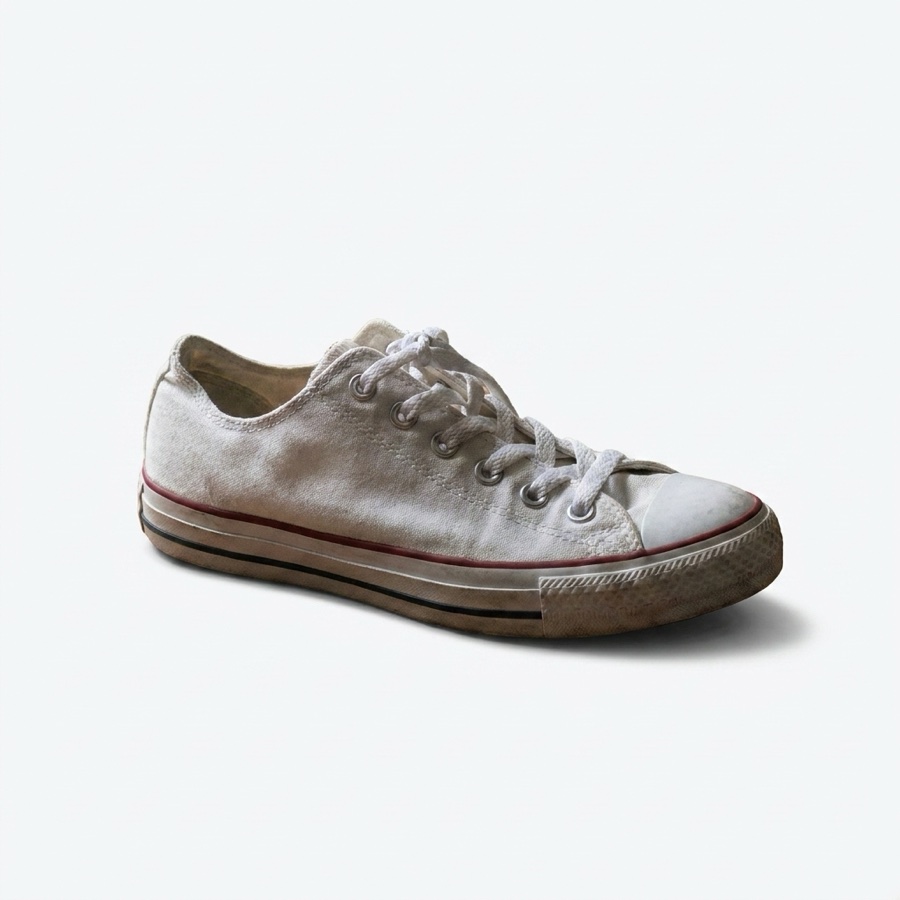
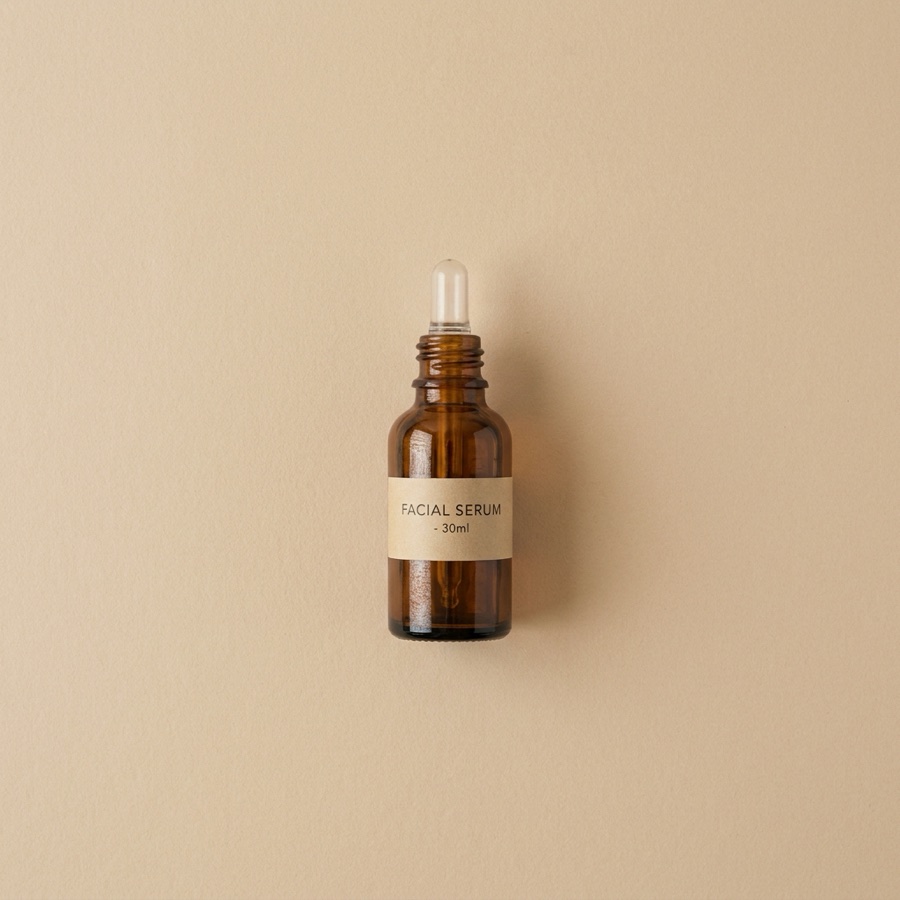
Shoppable affiliate product visual made with DesignerBoxShoppable post
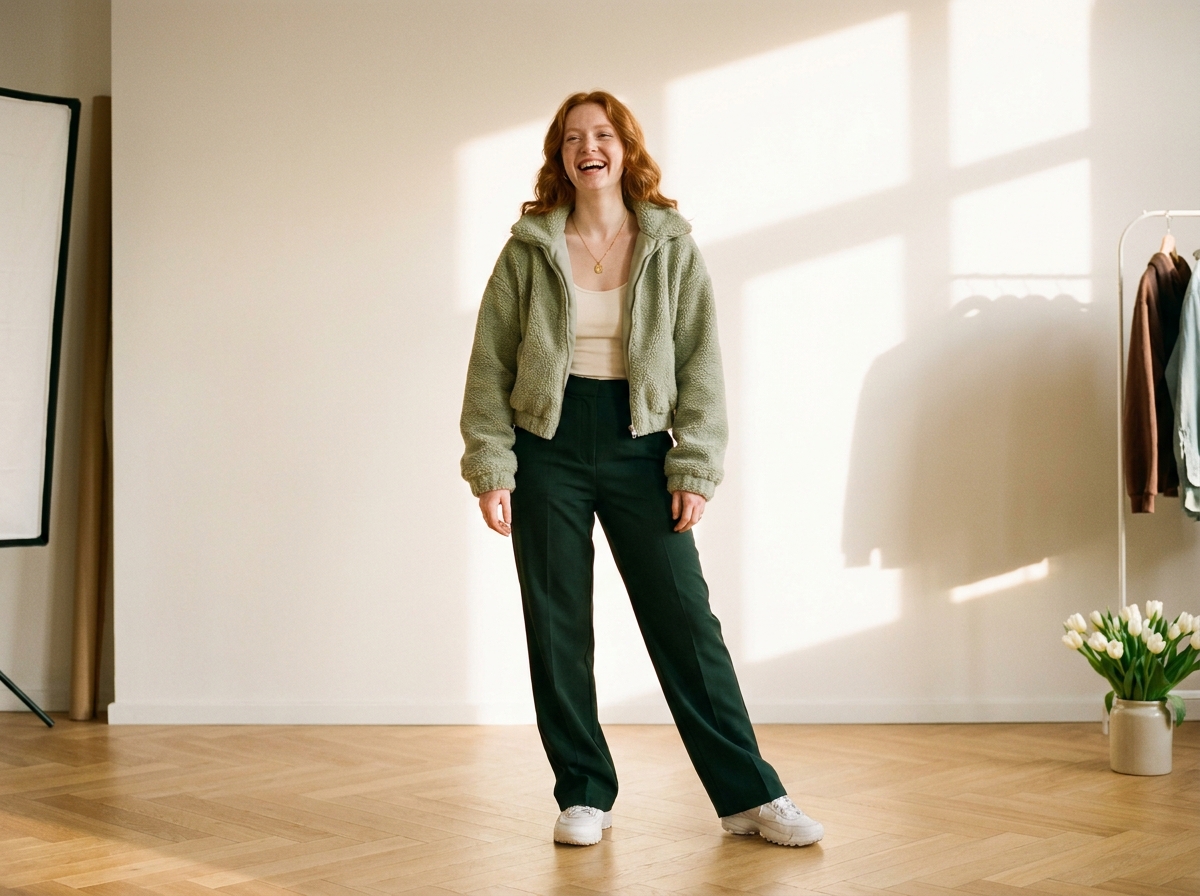
Styled clothing look made with DesignerBoxStyled look
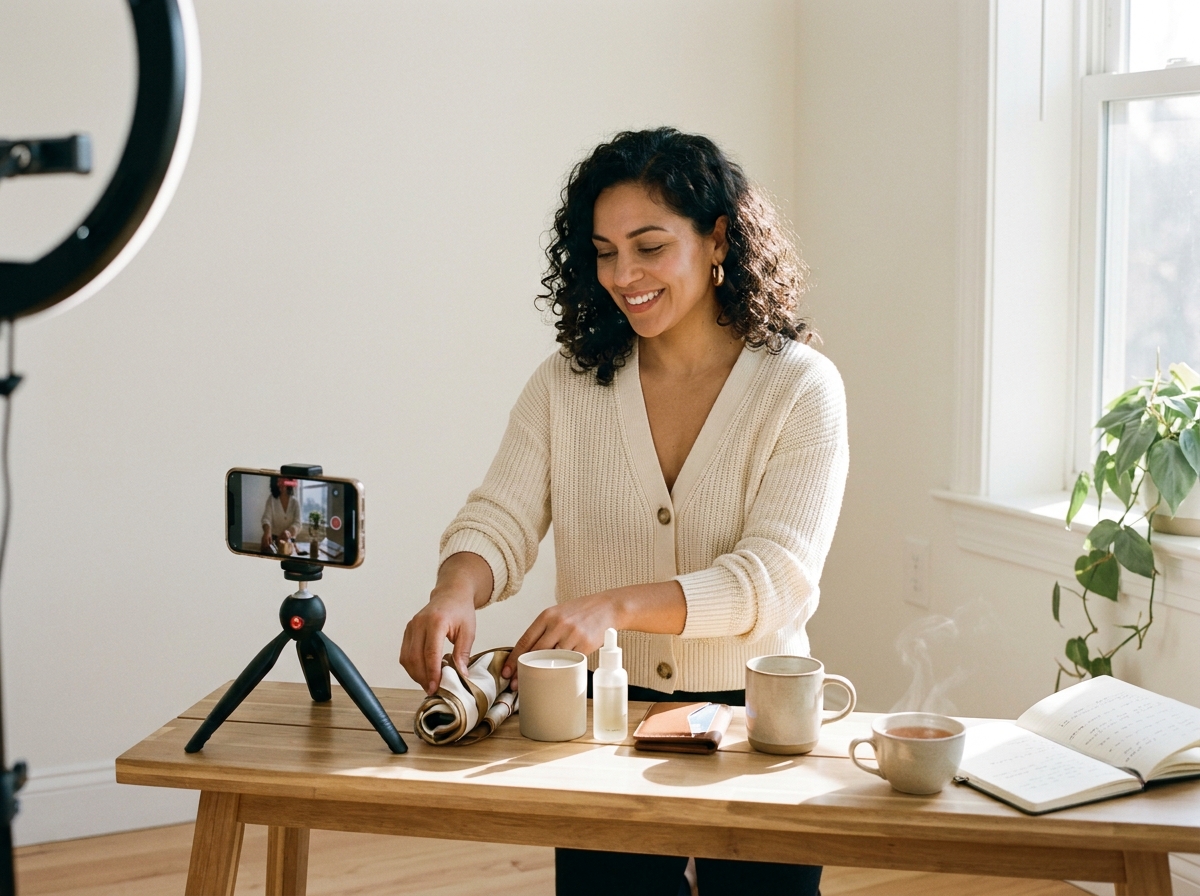
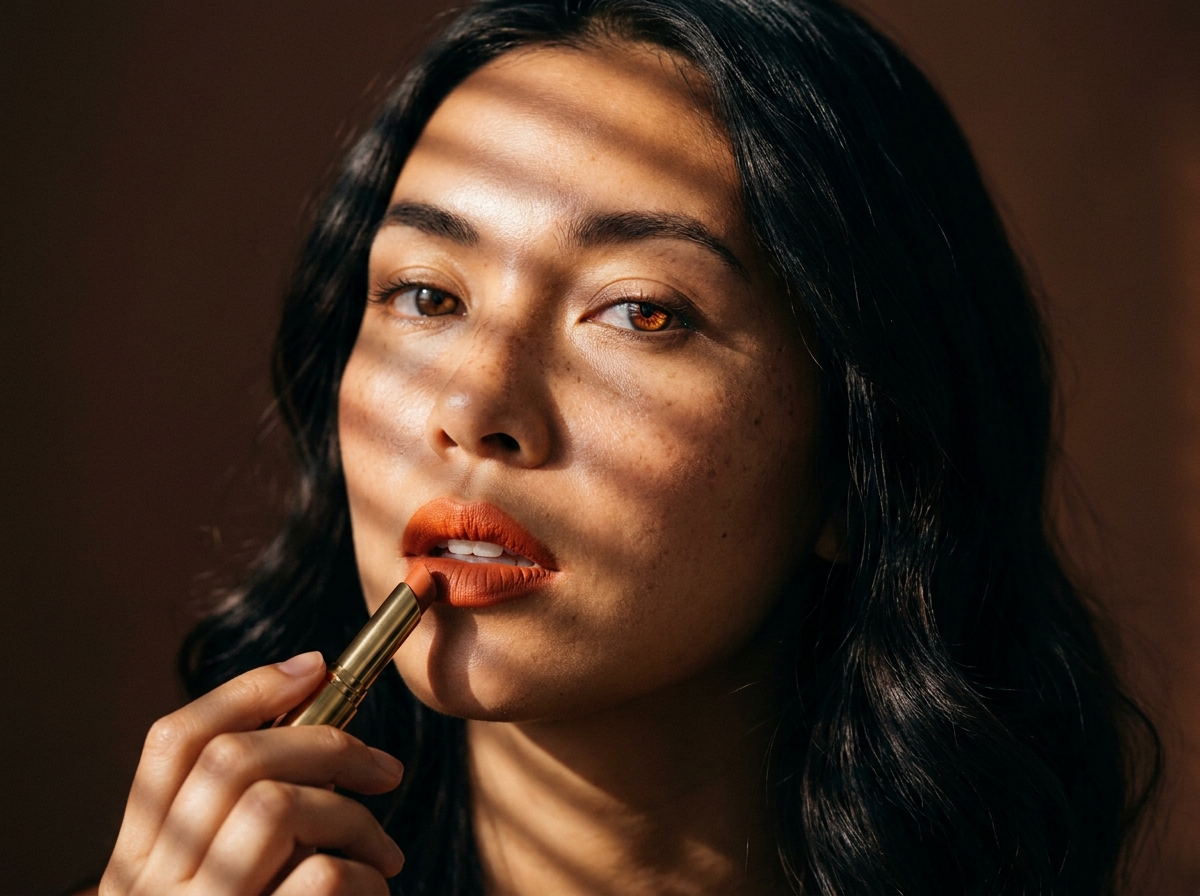
Beauty product scene made with DesignerBoxBeauty
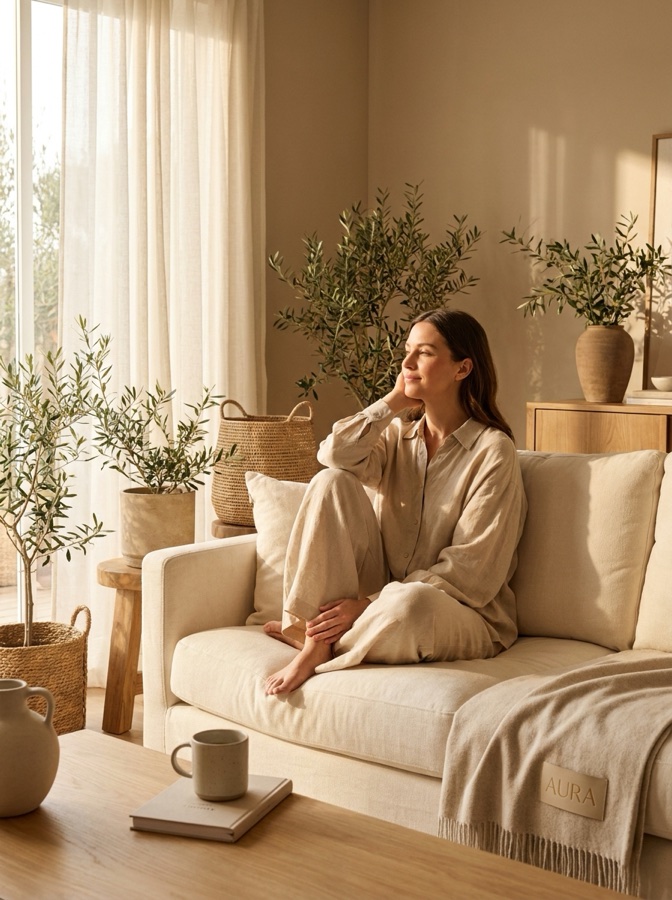
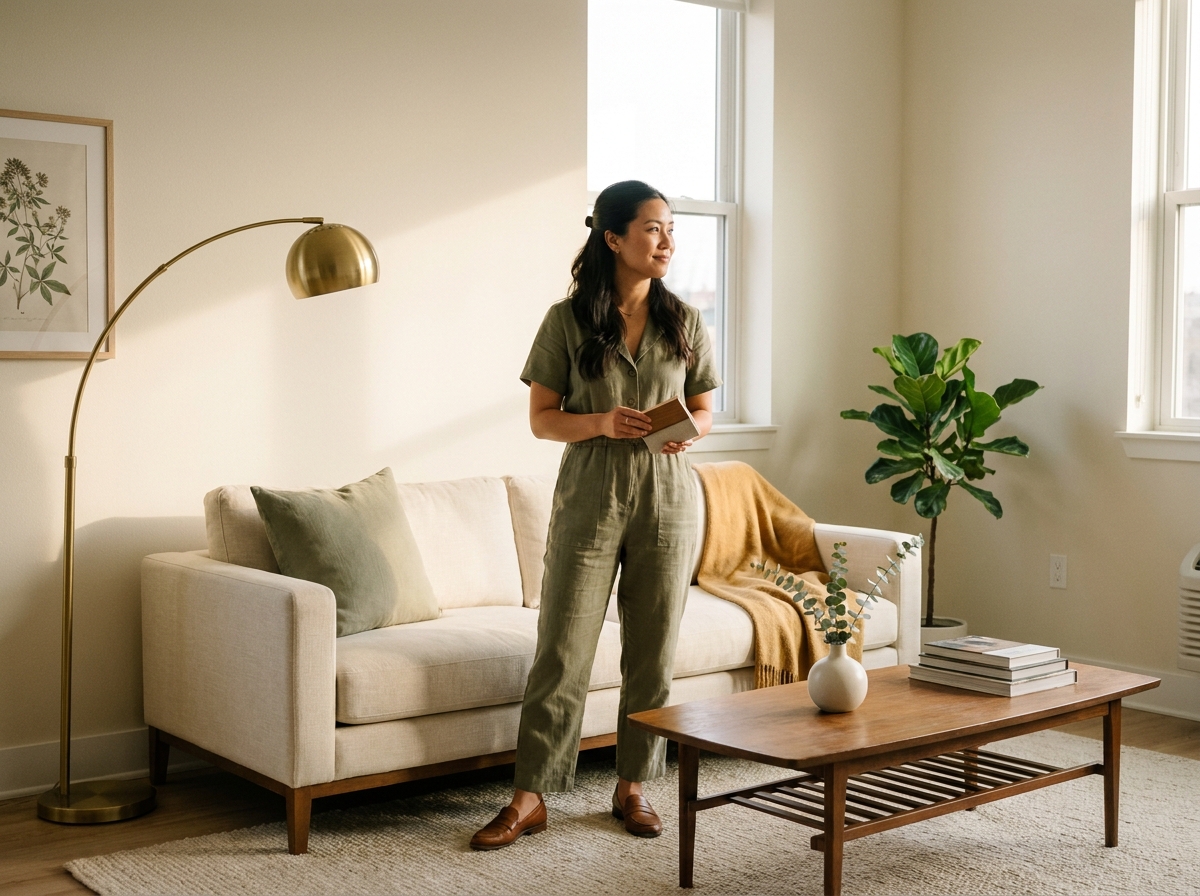
Styled home interior scene made with DesignerBoxHome
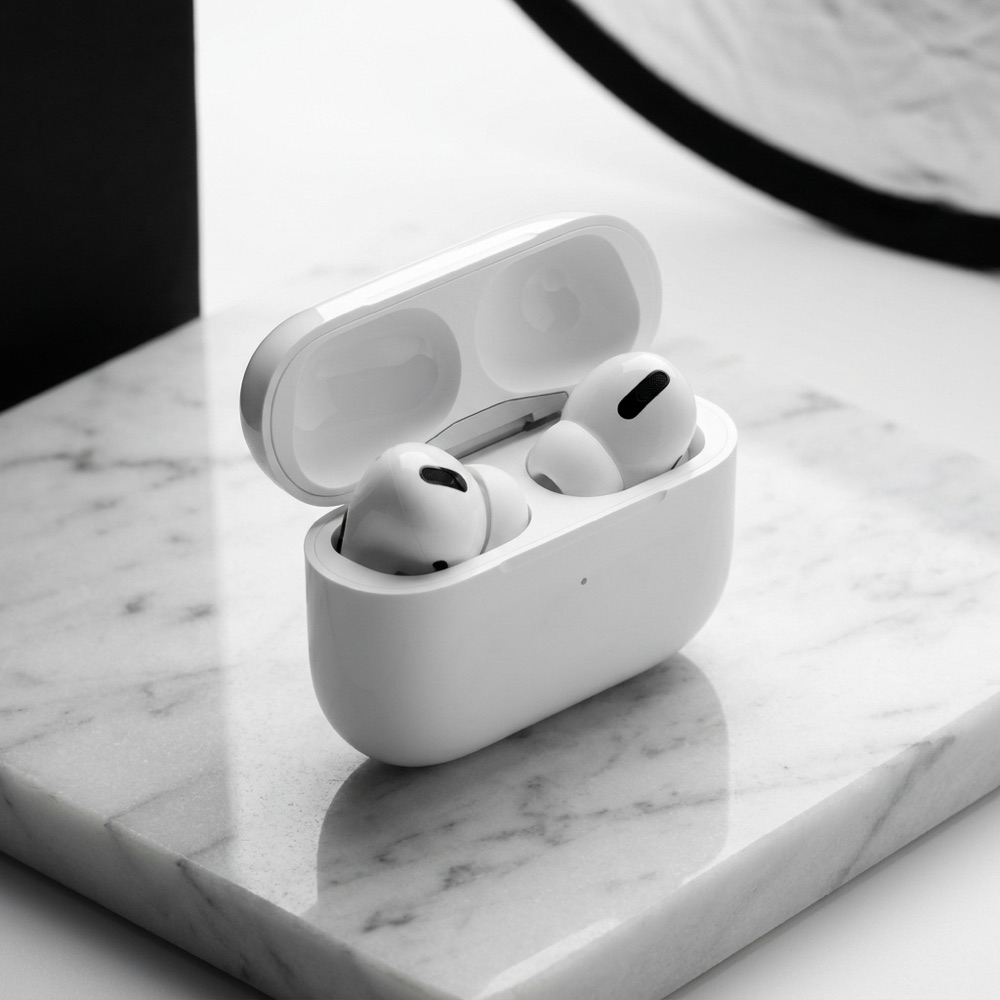
Product packshot generated with Nano Banana ProNano Banana Pro

This page is for creators earning commission through Mavely, where anyone can sign up and no audience size is required. That changes the picture problem in two ways worth naming. Nothing arrives in the post, because there is no gatekeeper to impress and no sample programme to be cast for, so most of what you promote is something you bought yourself or have never held. And Mavely has no feed of its own to fill: the link goes into a post you were already making on TikTok, Instagram, Facebook or a newsletter, under that platform's shape rather than Mavely's. So the same product needs several versions of one picture, several times a week, made fast enough that the price is still live. Mavely's own storefront leans on collages for this, which is the quickest way to fill a page and the least like a photograph. DesignerBox makes the photograph instead, from whatever real source you started with.

What Mavely creators use it for

Four jobs, all of them measured in minutes.

Make a stock photo look like yours

A retailer's image arrives on a grey studio ground, at the wrong shape, looking like every other creator's post about the same product. Cut the product out and put it on a surface you use every time. That one step is the difference between a post that reads as a screenshot and one that reads as a recommendation.

Rescue the photos you took in a hurry

Your own product photos get taken on a kitchen counter with the overhead light on, because that is when the price changed. Correct the light so a white box photographs white and a black case does not come out as a silhouette, without setting anything up a second time.

One product, every shape you post at

The link goes wherever you already post, and every one of those places crops differently. Building the square, the portrait and the full-height version from a single source means you are not choosing which platform gets the cropped-in-half version of the product.

Post a photograph, not another collage

A grid of cut-out products on a coloured background is the fastest thing to make and the thing your audience has seen a hundred times this week. A styled photograph of one product takes a surface, daylight and a props box you do not have. This builds it from the plain shot you already took.

See it on a real product

Four tools, each aimed at a step that has to take under a minute.

Flat Lay Studio - Before
Before
Flat Lay Studio - After
After
Flat Lay Studio

Flat Lay Studio

When the product is in your house, flat on a plain surface is the fastest honest photograph of it. Flat Lay Studio returns it evenly lit, square to the camera and cleanly cropped, which is the version that works in a feed post, a story and a storefront tile without three separate edits.

Open the tool
Social Media Ad Studio

Social Media Ad Studio

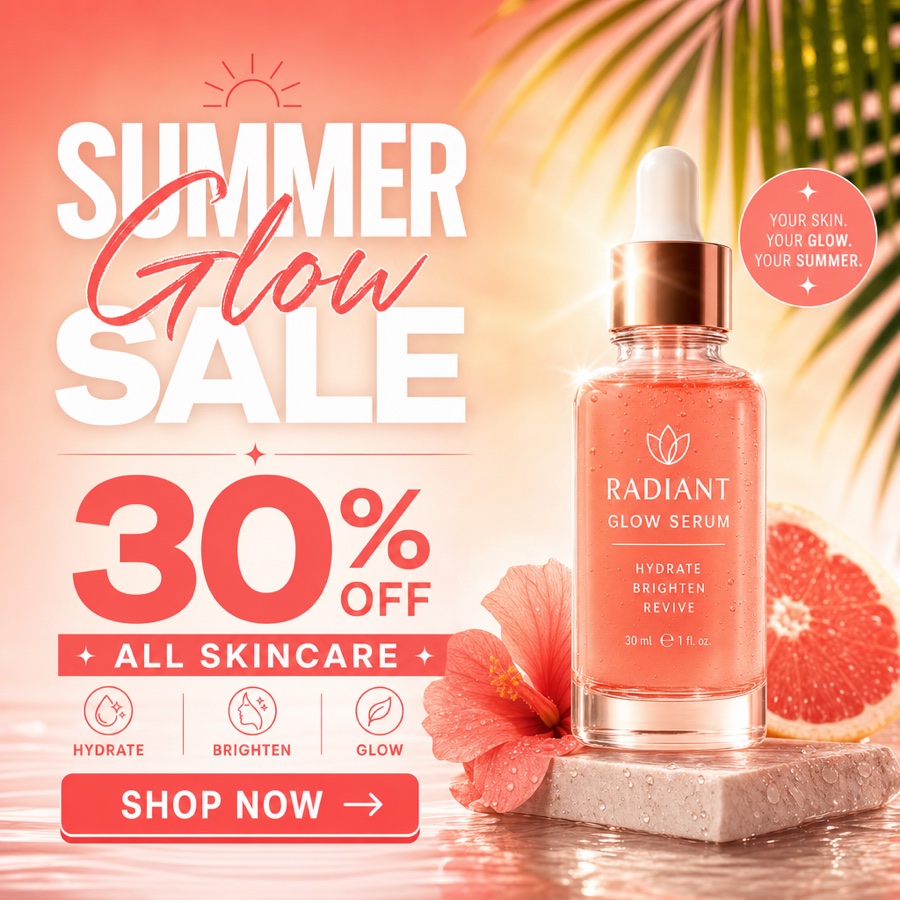
Most of what you post carries a price, a discount or a reason to click, and text on an image is where a fast post falls apart. Social Media Ad Studio sets the product and the wording together, so the number is still legible at the size someone actually sees it.

Open the tool
Background Remover - Before
Before
Background Remover - After
After
Background Remover

Background Remover

This is the tool that does the most work here. Take the retailer's studio grey or your own worktop out, put the product on a ground you reuse, and a feed built from mixed sources starts to look like one person's shelf instead of a scrape.

Open the tool
Brand Story Creator
Brand Story Creator

Brand Story Creator

Stories are where a link gets tapped, and they want a full-height frame several times a day. Build the vertical version from the product image you already prepared, rather than cropping a square and losing half the item.

Open the tool

Each before and after above demonstrates the tool named on the card, using that app's own sample image, so the subject you see may not be from this industry. Run the same tool on your own photos to see it on your work.

From price drop to posted

Four steps that have to finish while the link is still worth sharing.

1
Start from a real picture of the real product
If the item is in your house, take one clean frame of it. If it is not, use the retailer's own image of that exact product, within what the programme allows. This is the step the rest of the page depends on, and it is the one that must never be replaced by generating something instead.
2
Clean the ground and fix the light
Cut the product out and correct the exposure. This single step is what makes a feed of your photos and retailer photos look like it came from one place, and it is identical on every product, which is why it is the one worth saving.
3
Produce every shape you need
Make the square for the feed, the portrait for the grid and the full-height frame for stories, from the one source. Add the price or the reason where the post needs it, and check it is readable small.
4
Save it and reuse it all week
Save the sequence as a workflow so the next product is a drop-in rather than a rebuild. At several posts a week, that saved sequence is the whole difference in how long this takes.

Where the images go

Mavely gives you the link. Every place you paste it wants the product differently.

Short video

Even a video post needs stills: the cover frame, the product card on screen, the end frame with the price. Preparing those as clean images first is faster and far more readable than hoping the product is legible in footage shot on a counter.

Stories and vertical posts

Vertical frames are where a shoppable link gets tapped, and they want the tall shape. A square stretched to fill that frame cuts into the product, so produce the tall version from the same source instead of resizing the feed image.

Your Mavely storefront

The storefront is the one surface Mavely gives you that needs pictures of its own, organised into pages and posts with an image on each. Its built-in shortcut is a collage. Putting a real styled photograph there instead is the cheapest way to look different from every other storefront built the quick way.

Link in bio, newsletter and DMs

Mavely's own list of places you can share a link runs from social profiles to a blog to a newsletter, and each one is a grid of small pictures. The cutout you already made for the feed post is the image that works in all of them, so keeping a link page current costs nothing extra.

The same treatment on a feed built from mixed sources

The thing that makes a commission feed look untrustworthy is not the products, it is that every picture came from somewhere else and looks like it. One image is a grey studio packshot, the next is a phone photo on a worktop, the next is a collage on a pink background. A saved workflow fixes that by applying one ground, one exposure and one set of shapes to everything, whatever it started as, so a feed assembled from your own photos and retailers' photos reads as one person's recommendations. That is worth more than any single image, because it is what makes someone follow rather than scroll. The limit is worth repeating, because this is the segment where it is easiest to cross. Every image starts from a real picture of the real product. When you have the item, that is your photograph. When you do not, that is the retailer's own image of it, used within the terms of the retailer and the programme. Generating a product you have never seen, to earn commission on a real listing, is deceptive advertising, and it is also the quickest way to lose an audience that follows you specifically because your recommendations are real. Edit the presentation. The product stays the product.

Every model, one subscription

What you promote changes week to week, and so does the material. A knitted jumper, a glass bottle, a plastic toy, a pair of trainers. No single image model is best at all of them. DesignerBox carries them in one workspace on one subscription rather than a licence each: Nano Banana Pro and Nano Banana 2 from Google, GPT Image 2 from OpenAI, Seedream 5 from ByteDance, and FLUX 2 Flex, FLUX Pro 1.1 and Kontext Multi from Black Forest Labs. Keep one as your default so a week of posts holds a look, and switch only when a material fights you. Glass, packaging film and anything chrome are the usual reasons to switch.

Creator questions

What commission creators ask before they use this.

Can I edit a retailer's product photo?
Often yes, and it is how most fast commission content gets made, but the permission comes from the retailer and the programme rather than from us. Affiliate programmes usually publish what you may do with their product imagery, and some brands are much stricter than others. Read those terms, then edit only the presentation around the product. Cutting an item out of a grey studio ground and putting it on a warmer surface is presentation. Changing the colour, the shape or the finish of the product is not, and that is the line that gets accounts closed.
What if I have not received the product yet?
Use the retailer's own picture of that product, and say nothing that implies you have it in your hands. Never generate an image of an item you have not seen. That is the one rule this page will not bend on. A fabricated picture attached to a real listing you earn commission on is deceptive advertising, and it is the fastest way to lose the trust the commission depends on. If you have not used the product, recommend it as something you found rather than something you tested.
What size should a Mavely post be?
Mavely publishes no image or video spec, and that is not an oversight. Your link goes into a post that lives on TikTok, Instagram, Facebook, a blog or a newsletter, so the shape is set by whichever of those you posted on, not by Mavely. Work to the platform's own sizes: square or portrait for a feed, full height for stories and short video. The practical answer is to produce two or three shapes of every product from one source, so you never have to pick which platform gets the badly cropped version.
My storefront already makes collages. Why would I need this?
Because a collage and a photograph are not the same product picture. The built-in collage is genuinely useful for filling a storefront page quickly, and if that is all you need then use it. What it cannot do is give you a single product photographed on a real surface, at the shapes your feed and your stories want, matching the other posts around it. That is the picture the link actually gets tapped from, and it is the one your storefront tool leaves you to find somewhere else.
Do I have to label AI-edited images?
Check the platform you are posting on, because the rules differ and they keep changing. Several platforms now ask for AI-generated or AI-modified content to be labelled, and some detect and label it themselves. Two things are separate from that and always apply: your paid relationship has to be disclosed in the post, and the product has to be shown truthfully. Labelling the image does not satisfy the disclosure, and disclosing the link does not satisfy the labelling.
Which plan do I actually need for this?
Two gates decide whether the workflow on this page is open to you, so check them before you pick. Uploading your own photograph is on Pro ($35 a month) and above, which is also the tier that carries the commercial licence. Photo editing, relighting and video generation are on Premium ($75 a month) and above. The free plan carries 112 credits a month for generating images and watermarks what it produces, so treat it as a look at the models rather than as this workflow. Every paid plan starts with a 7-day free trial. Plans run $15 a month for 500 credits, $35 for 1,000, $75 for 2,500 and $200 for 8,000.

Prepare one product with it

Take the next thing you were going to post, build the picture at every shape you need, and see how long it actually took. Every paid plan starts with a 7-day free trial.

See plans