
Photoroom vs Canva comes down to the step of a product listing you do most. Photoroom is built for the product photo itself: background removal, shadows, AI backgrounds, on-model shots and AI edits on up to 250 images at once. Canva is built for the design around the photo: templates, text, layouts and resizing for every channel. Many sellers use both, one after the other.
That is the short answer. The longer answer depends on your week. A shop with 40 new products needs 40 clean photos before it needs one social post. A brand with 10 products and a busy ad calendar has the opposite problem.
This guide compares the two tools job by job, across the 12 jobs a product listing and its ads usually need. Every fact comes from the vendor’s own pages, read in September 2026. No price is printed here: each vendor lists its own, and the pages change faster than an article does. DesignerBox publishes this comparison and sells a third option, so read the section on it with that in mind.
Key Takeaways
- Photoroom is a product photo tool. Background Remover, preset AI Shadows, Retouch, AI Expand/Resize and Image Enhancer are on every paid plan (photoroom.com/pricing, September 2026).
- Canva is a design suite. Templates, text, layouts, Magic Resize and Bulk Create sit around a canvas. Its Background Remover is on paid plans only (canva.com/help/background-remover, September 2026).
- Both remove backgrounds in bulk now. Photoroom’s batch takes “any size and any quantity” of uploads, and its AI edits run on up to 250 images at once. Canva removes backgrounds from a folder, up to 50 images at a time.
- The free plans work differently. Photoroom’s free plan is for personal, non-commercial use. Canva’s free plan allows commercial use of Canva content, with carve-outs, but it does not include the Background Remover.
- Canva owns remove.bg. Remove.bg’s background removal moves into Canva, and its standalone site closes on 1 December 2026 (remove.bg/faq, September 2026).
- Seats differ. Photoroom lists team seats on its paid plans. Canva Pro is one person, and Canva Business bills per person.
- Both stop at the same place. Neither pricing page lists a saved, multi-step job that runs the same way on the next product. That is the job a workflow tool does. Our guide to AI workflow software covers when an agency builds one and when it buys one.
Photoroom vs Canva: what each one is built for
Photoroom starts from a photo of your product. Its tools make that photo ready for a listing: remove the background, add a shadow, fix the light, expand the frame, put the product in a new scene, or put a garment on an AI model. Photoroom lists its plans on its own pricing page (photoroom.com/pricing, September 2026).
Canva starts from a blank design or a template. Its tools arrange images, text and brand elements into a finished piece: a social post, an ad, a banner, a flyer or a slide. Canva lists its plans on its own pricing page (canva.com/pricing, September 2026).
The two overlap in the middle. Photoroom has templates and resize (photoroom.com/templates, September 2026). Canva has a background remover and AI image tools. The overlap is real, but each tool goes deeper on its own side of it.
| Photoroom | Canva | |
|---|---|---|
| Starts from | Your product photo | A template or a blank design |
| Deepest at | The product image | The layout around the image |
| Free plan | Yes, personal use only | Yes, commercial use of Canva content with carve-outs |
| Seats | Team seats on paid plans | Pro is one person. Business bills per person |
| AI chat connection | An MCP server for Claude | An AI Connector for ChatGPT, Claude and Gemini |
Source: each vendor’s pricing, help and API pages, read September 2026.
Photoroom vs Canva, job by job
A product listing is a set of jobs, and a tool is good or weak one job at a time. These are the 12 jobs a small brand or an agency usually runs for each new product.
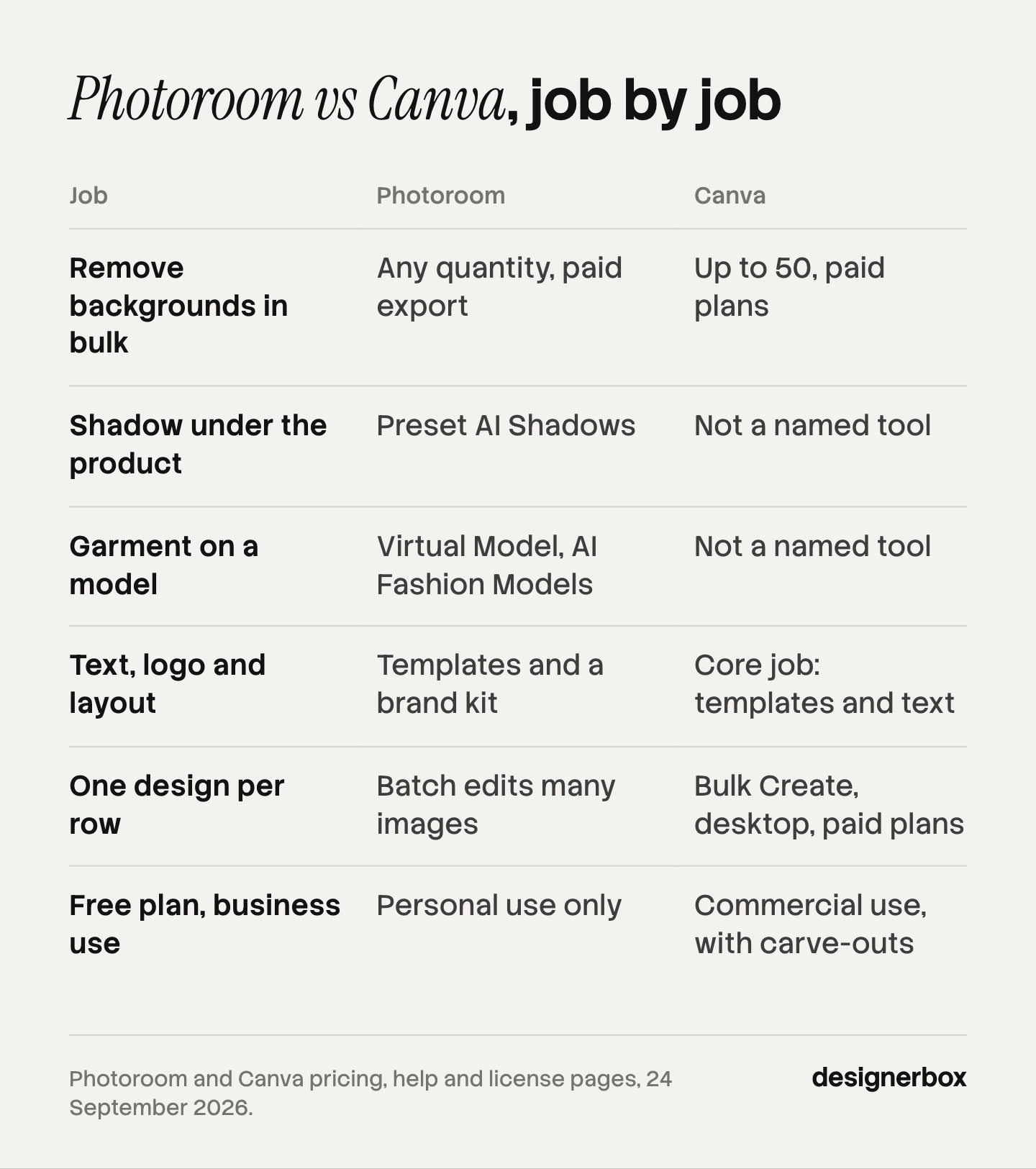
| Job | Photoroom | Canva |
|---|---|---|
| Remove the background | Background Remover on every paid plan | Background Remover on paid plans |
| Remove backgrounds from many photos | Batch, many photos at once. Export needs a paid plan | Up to 50 images at a time from a folder, paid plans |
| Add a shadow under the product | AI Shadows (Presets) on every paid plan. Adjustable AI Shadows on Enterprise | Not a named tool on Canva’s pricing page |
| Put the product in a new scene | AI Backgrounds Studio, uses credits | Create an image with Canva AI, Magic Edit, Magic Expand |
| Put a garment on a model | Virtual Model. AI Fashion Models at 2K, and at 4K from Ultra | Not a named tool on Canva’s pricing page |
| Resize for each channel | AI Expand/Resize on every paid plan | Magic Resize on paid plans |
| Add text, logo and layout for an ad | Templates and a brand kit, around the product photo | Its core job: templates, text, layout, brand kits |
| Make one design for 100 products from a sheet | The batch editor applies edits to many images | Bulk Create links rows and columns to a design, on desktop, paid plans |
| Keep brand colors and fonts | Brand Kit on paid plans | Brand Kits on every plan, with approvals on Business |
| Make a short product video | Video Generator on Max and Ultra | Create a video clip with Canva AI, plus a video editor |
| Send images to Shopify | Shopify Integration from Max | Shopify Connect for Canva, free to use |
| Connect from code or an AI chat | Remove Background API, Image Editing API, MCP server | Connect REST APIs, AI Connector on every account, Free included |
Source: photoroom.com/pricing, photoroom.com/batch, photoroom.com/api, canva.com/pricing, canva.com/help/background-remover, canva.com/help/bulk-create, canva.com/help/resize, canva.com/help/mcp-agent-setup and canva.com/integrations/shopify, all read September 2026.
Read “not a named tool on Canva’s pricing page” literally. It means we did not find one there. It does not prove the job is impossible in Canva with other tools.
The pattern is clear across the rows. Photoroom goes deeper on the photo: shadows, scenes, AI models and 4K results. Canva goes deeper on everything built around the photo: layout, text, data-driven designs and brand controls for large teams.
Which is better for background removal, Photoroom or Canva?
For a listing photo, Photoroom does more around the cutout. Its Background Remover sits next to preset AI Shadows, Retouch, AI Fill and Image Enhancer on every paid plan, so one tool takes a phone photo to a white background with a shadow (photoroom.com/pricing, September 2026). In Canva, the cutout is the first step, and the image then goes onto a design canvas.
Two facts change the usual answer.
Canva’s Background Remover is not on its free plan. Canva’s help page says “Background remover is included with paid plans” (canva.com/help/background-remover, September 2026). If you chose Canva because it is free, background removal is where that stops.
Canva now removes backgrounds in bulk. Its help page says you can remove the backgrounds from all supported photos in a folder at once, up to 50 images at a time. So a folder of product photos no longer needs a second tool for the cutouts.
A third fact matters if you use remove.bg today. Remove.bg has been part of Canva since 2021. Its background removal is moving into Canva, and the standalone site closes on 1 December 2026 at 9:00 CET (remove.bg/faq, September 2026). A remove.bg habit becomes a Canva habit on that date.
Whichever tool you use, check the result against the marketplace rule. Amazon’s main image must have “a pure white background (RGB color values: 255, 255, 255)” and the product must fill 85% of the image (Amazon product image requirements, accessed September 2026). A cutout that leaves a gray edge or a soft shadow fails that check. Our guide to the best AI background removers, sorted by job tests nine tools on the edges that fail most often.
Which handles bulk work better?
The two tools mean different things by bulk, and the difference decides the answer.
Photoroom’s batch is many photos, one set of edits. You load a set of product photos and apply the same background, shadow and size to all of them. For uploads, Photoroom says “Any size and any quantity works.” Its AI edits, such as Ghost Mannequin, Virtual Model and Product Staging, work “on a single image or up to 250 images at once” (photoroom.com/batch, September 2026).
Batch is available on every subscription, and export needs Pro, Max or Ultra. A new batch editor is rolling out to customers gradually (help.photoroom.com, September 2026).
Canva’s Bulk Create is one design, many rows of data. You link a spreadsheet to placeholders in one design, and Canva makes one design per row. Canva lists it on its paid plans, and on desktop only (canva.com/help/bulk-create, September 2026). That is how a shop makes 100 price tags, 100 social posts or 100 ad variants with a different product name on each.
So the two batches do different work. Photoroom’s makes 200 clean product photos. Canva’s puts those photos into 200 finished designs. Many teams need both, in that order. Our guide to bulk product images covers the harder step after both: reviewing hundreds of results and finding the wrong ones.
Can you use the free plans for a business?
This is the question that matters most for a new shop, and the two tools answer it in opposite ways.
Photoroom’s free plan is for personal use. Its help center says: “You cannot use free accounts for commercial use” and limits them to “your own personal, non-commercial purposes” (help.photoroom.com, September 2026). A product photo made on a free account and used in a listing is outside that license.
Canva’s free plan allows commercial use of Canva content. Canva’s content license lists “advertising and promotional projects”, including product packaging and catalogs, “for promotion and/or resale” (canva.com/policies/content-license-agreement, September 2026). It also says “You may use AI-Generated Content in the same way you may use Free Content or Pro Content.”
Canva’s license has limits, and they matter to sellers:
- You may not distribute Pro Content “as a standalone item”.
- You may not use Canva content as the main design on print-on-demand products such as mugs and T-shirts without changing it.
- Branded Content is for personal use only.
So Canva’s free plan is the stronger license for a small business, and Photoroom’s paid plans are the ones to compare. Either way, the free plans give you different things: Canva free has the license and not the Background Remover. Photoroom free has the tools and not the license. This is general information, not legal advice. Read the current terms before you run a paid ad.
Seats, brand kits and teams
Team size changes the answer more than features do.
Photoroom lists team seats on its paid plans, and a custom seat count on Enterprise (photoroom.com/pricing, September 2026). A Brand Kit is on the same paid plans. For a team of five editing product photos, that is a simple fit.
Canva Pro is “for one person”, and Canva Business bills “per person” (canva.com/pricing, September 2026). Business adds more Brand Kits and approvals, which suits an agency that keeps one kit per client.
For an agency, that is the deciding row. One Canva Business account can hold a separate brand kit for many clients. Photoroom’s brand kit is built around one brand’s product photos.
When to use Photoroom and Canva together
Many sellers do not choose. They use Photoroom first and Canva second, because the two tools cover two steps of one job.

A typical order for one new product:
- Photoroom: remove the background, add a preset shadow, and export the white-background main image.
- Photoroom: make the lifestyle scene or the on-model shot for the listing gallery.
- Canva: place those photos into the ad, the social post and the email banner, with your text and logo.
- Canva: resize each design for every channel, or run Bulk Create for the whole collection.
The cost of this order is the handoff. Each product moves between two tools, two logins and two brand kits. At 10 products a month that is fine. At 200 products, the handoff is most of the work, and the results start to look a little different from product to product. Our guide to consistent product images names the six things that drift first: background, light, framing, color, styling and export.
The same shot on every product
Anyone can make an AI picture. Making hundreds that still look like your brand is the hard part.
Photoroom makes one product photo ready. Canva makes one design ready. Neither pricing page lists the whole job, from the product photo to the finished ad, as one saved set of steps that runs the same way on the next product. That is the job DesignerBox is built for.
DesignerBox is AI creative production for brands and agencies. Scale your images, ads and video with AI and keep your brand on every piece: build the workflow once with your brand rules, run it on every product, see the cost before each run, and keep everything from the first product photo to the finished ad in one place. DesignerBox also keeps a ranked Photoroom alternatives roundup on its site, which compares ten tools on quotas, video and API access.
You build a workflow once: the background, the light, the framing, the scene and the ad layout. Your brand rules live in the workflow, so it reads them on every run. Batch runs that one workflow over a whole sheet of products, and you keep or discard each row and re-run one row alone.
The cost of a run is shown before you run it. The full workflow from the first product photo to the finished ad, in one subscription.
Be clear about the trade. Photoroom is the better fit for high-volume photo editing and for teams that need many seats. Canva is the better fit for general design, documents and decks.
The commercial license on DesignerBox starts on the Pro plan. AI video and virtual try-on start on the Premium plan. Team features, shared brand kits and white label are on the Ultra plan, and every plan below Ultra is one seat. Plans and credits are on the pricing page.
If you want the feature-by-feature detail, the DesignerBox and Photoroom comparison sets that pair side by side. The other pairs are on the comparison page.
How to choose between Photoroom and Canva
Read down this list and stop at the first line that fits you.
- Your work stops at the product photo, and you have many products. Choose Photoroom. Its core edits are on every paid plan, and its AI edits run on up to 250 images at once.
- Your photos are ready, and your bottleneck is ads, posts and banners. Choose Canva. Templates, text, Magic Resize and Bulk Create are its core.
- You need a free plan for a business. Canva’s free plan allows commercial use of its content, with carve-outs. Photoroom’s free plan is personal use only.
- You sell fashion and need on-model shots. Photoroom lists Virtual Model and AI Fashion Models. Canva’s pricing page lists no dedicated tool for it.
- You are an agency with many client brands. Canva Business holds many brand kits with approvals. Photoroom lists team seats on each paid plan.
- You run the same job on every new product, from photo to ad. That is a workflow job. Start with AI product photography in DesignerBox.
Before you commit, price the job instead of the plan. Our breakdown of what a product photoshoot costs is the baseline both tools compete against. If you want the wider field, read our Photoroom alternatives and Canva alternatives guides.
FAQ
Is Photoroom better than Canva?
For product photos, yes. Photoroom includes background removal, preset AI shadows, retouch and resize on every paid plan, and it adds AI backgrounds and AI fashion models (photoroom.com/pricing, September 2026). For design around the photo, Canva goes deeper: templates, text, layouts, Bulk Create and brand kits. The better tool is the one that covers your slowest step.
Does Canva have a background remover like Photoroom?
Yes. Canva’s Background Remover is included with paid plans, and it removes backgrounds from up to 50 images in a folder at a time (canva.com/help/background-remover, September 2026). It is not on Canva’s free plan. Photoroom pairs its remover with preset shadows and retouch on every paid plan, which helps for marketplace main images.
Can I use Photoroom’s free plan for my business?
No. Photoroom’s help center says “You cannot use free accounts for commercial use” (help.photoroom.com, September 2026). For product listings and ads, compare Photoroom’s paid plans. Canva’s free plan allows commercial use of Canva content, with carve-outs such as Branded Content.
Which is better for Amazon product photos?
Photoroom, for the main image. Amazon requires a pure white background at RGB 255, 255, 255, with the product filling 85% of the image (Amazon product image requirements, accessed September 2026). Photoroom’s cutout, preset shadow and resize tools cover that job directly. Canva helps with the secondary images that carry text and callouts.
Can Canva and Photoroom batch edit product photos?
Both can. Photoroom’s batch applies the same edits to many photos, its AI edits run on up to 250 images at once, and export needs a paid plan (photoroom.com/batch and help.photoroom.com, September 2026). Canva removes backgrounds from up to 50 images at a time and makes one design per spreadsheet row with Bulk Create, on desktop and paid plans.
What happens to remove.bg?
Remove.bg is a Canva brand. Its background removal moves into Canva, and the standalone website closes on 1 December 2026 at 9:00 CET (remove.bg/faq, September 2026). If you use remove.bg today, plan to use Canva’s Background Remover, or another tool, after that date.
Which is better for a Shopify store?
Both connect to Shopify. Photoroom’s Shopify Integration starts on its Max plan (photoroom.com/pricing, September 2026). Canva lists Shopify Connect for Canva as free to use (canva.com/integrations/shopify, September 2026). For image size, Shopify says “a size of 2048 x 2048 px usually displays best” for square product images (Shopify Help Center, accessed September 2026).
Sources
Competitor pages are cited by domain and date, not linked.
- Photoroom plans, seats, core tools on every paid plan, credit AI tools, video by plan, AI Fashion Models resolution, Adjustable AI Shadows, Brand Kit and Shopify Integration by plan: (photoroom.com/pricing, September 2026)
- Photoroom batch uploads of any quantity and AI edits on up to 250 images: (photoroom.com/batch, September 2026). Batch export on paid plans and the new batch editor: (help.photoroom.com, September 2026)
- Photoroom free accounts and commercial use: (help.photoroom.com, September 2026)
- Photoroom Remove Background API, Image Editing API and MCP server: (photoroom.com/api, September 2026)
- Photoroom templates: (photoroom.com/templates, September 2026)
- Canva plans, seats, brand kits and AI tool names: (canva.com/pricing, September 2026)
- Canva Background Remover on paid plans and folder removal of up to 50 images: (canva.com/help/background-remover, September 2026)
- Canva Bulk Create: (canva.com/help/bulk-create, September 2026). Magic Resize: (canva.com/help/resize, September 2026)
- Canva AI Connector: (canva.com/help/mcp-agent-setup, September 2026). Shopify Connect for Canva: (canva.com/integrations/shopify, September 2026)
- Canva content license, commercial uses, AI-generated content and carve-outs: (canva.com/policies/content-license-agreement, September 2026)
- Remove.bg moving into Canva and the standalone site closing on 1 December 2026: (remove.bg/faq, September 2026)
- Amazon main image rules: Amazon Seller Central, product image requirements (accessed September 2026)
- Shopify product image size: Shopify Help Center, product media types (accessed September 2026)
- DesignerBox plan gates and the cost shown before each run: DesignerBox pricing page (designerbox.ai/pricing), September 2026
Photoroom and Canva features verified from each vendor’s own pages as of September 2026. Plans and features change often, so check the vendor’s page before you buy.