
Facebook ad design is the work of fitting one message into the shapes Meta shows. For a static image ad, Meta recommends three ratios: 4:5 for Feed, 1:1 as the square option, and 9:16 for Stories and Reels. Keep text and logos inside the safe zone, save the file as JPG or PNG, and check what Advantage+ creative may change before you publish.
Taste is hard to check. Meta’s published rules are easy to check, so this guide uses them. Every Meta fact below was read on a Meta page on 4 October 2026, and each one is linked.
It is written for brand teams and agencies that make static Meta ads every week. A note on bias: DesignerBox makes AI creative production software, and this guide says where other kinds of tool fit better.
Key Takeaways
- Three ratios cover a static Meta ad. 4:5 for Feed, 1:1 as the square option, and 9:16 for Stories and Reels.
- Meta’s recommended sizes are 1440 x 1800 and 1440 x 2560. The first is for Feed at 4:5. The second is for Stories and Reels at 9:16.
- The safe zone is the main design rule at 9:16. Meta asks for roughly 14% of the top, 35% of the bottom and 6% of each side free from text and logos.
- The limit on image text is gone. Meta’s page says there is no longer a limit on the amount of text in an ad image.
- Advantage+ creative can change your design. It can crop, expand, add text overlays and adjust brightness. You can turn each enhancement off.
- Meta adds an AI info label itself. It does so when you use its generative features, or when it detects that another AI tool made the image.
What is Facebook ad design?
Facebook ad design is how you arrange the product, the message and the brand inside an ad on Meta’s apps. Meta ad design is the same job with a newer name. One ad can appear in Facebook Feed, Instagram Feed, Stories and Reels. Each placement has its own shape, and each one covers part of the image with buttons and labels.
A Facebook ad creative has two parts. The first is the Facebook ad image, which you design. The second is the text around it: the primary text, the headline and the call to action button. Meta draws that second part, and it can shorten it.
This guide covers the rules: ratio, pixel size, safe zone and file type. For format ideas, see 30 static ad examples.
The three ratios and pixel sizes Meta recommends
Meta’s Ads Guide lists one recommended ratio and one recommended resolution for each image placement. These are the rows for a single image ad.
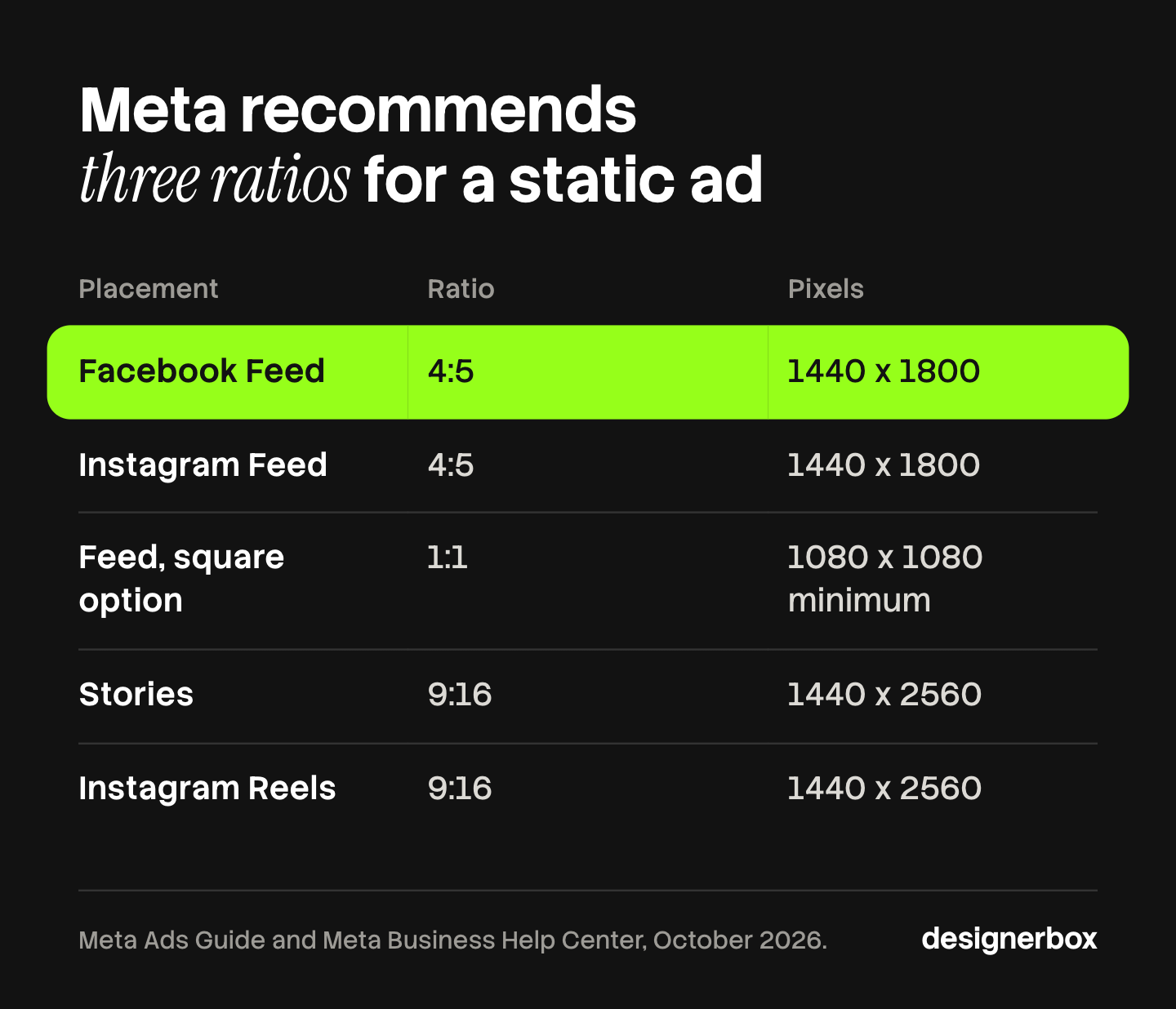
| Placement | Recommended ratio | Recommended resolution | Minimum width |
|---|---|---|---|
| Facebook Feed | 4:5 | 1440 x 1800 pixels | 600 pixels |
| Instagram Feed | 4:5 | 1440 x 1800 pixels | 500 pixels |
| Facebook Stories | 9:16 | 1440 x 2560 pixels | 500 pixels |
| Instagram Stories | 9:16 | 1440 x 2560 pixels | 500 pixels |
| Instagram Reels | 9:16 | 1440 x 2560 pixels | 500 pixels |
Sources: the Meta Ads Guide pages for Facebook Feed, Instagram Feed, Facebook Stories, Instagram Stories and Instagram Reels, October 2026.
The third ratio is the square. Meta’s help page on aspect ratios says Feed placements support both 1:1 and 4:5 for images. For Stories and Reels it recommends 9:16, because most people hold their phones vertically (Meta Business Help Center, October 2026). For a 1:1 image in Facebook Feed, Meta’s recommended minimum is 1080 x 1080 pixels (Meta Business Help Center, October 2026).
Two Meta pages differ on Instagram Feed. The Ads Guide lists 4:5. The aspect ratio help page recommends 1:1 for a single image there. Both ratios are supported, so check the preview for each one before you choose.
File type and file size
- File type. Meta accepts 17 image formats, from BMP to WEBP, and recommends JPG or PNG (Meta Business Help Center, October 2026).
- File size. The Ads Guide lists a maximum of 30MB for each image placement in the table above.
- Ratio tolerance. Facebook Feed allows 3%. Instagram Feed, Stories and Reels allow 1%.
- Resolution. Meta recommends the highest resolution image you have.
For the specs on TikTok, Pinterest and LinkedIn, see AI images for paid social campaigns.
Safe zones for Stories and Reels
The safe zone is the part of the image that the app does not cover or crop. Meta defines it as the area where text overlays and logos “will not be cropped out or covered by the user interface” (Meta Business Help Center, October 2026).

For a 9:16 image, the Ads Guide gives the numbers. Leave roughly 14% of the top, 35% of the bottom and 6% of each side free from text, logos and other key elements. The app places the profile icon and the call to action over those areas.
Four more rules are on the same help page.
- Feed has a safe zone too. For Instagram Feed ads at 1:1 or 4:5, keep the bottom and side edges free of key elements, text and logos.
- Ads Manager shows the zone. You can turn on a safe zone view. The safe zone is the area inside the yellow overlay.
- Tall phones change the frame. On a screen taller than 9:16, Meta may zoom the image to fill it, which can crop areas outside the safe zone. Or it may show the image at 9:16 on a black background.
- Disclaimers need more room. If a Reels ad includes a disclaimer, leave the bottom 40% free.
One timing fact matters for design. An image ad in Facebook Stories shows for eight seconds, or until the viewer swipes. So the message has to read at one look.
What does Meta say about text on a Facebook ad image?
You may have read about a limit of 20% text on a Facebook ad image. Meta’s page on image ads says today: “There is no longer a limit on the amount of text that can exist in your ad image. The text overlay tool is no longer available” (Meta Business Help Center, October 2026).
Meta still gives four best practices for text on the image:
- Use a modern, clean font in a large enough size and a contrasting color.
- Do not let the text obstruct the visuals.
- Do not communicate too many messages, because an ad usually has one call to action.
- Stay inside the safe zone.
The text around the image has length recommendations, and Meta may truncate text that runs longer. For most placements Meta recommends 125 characters of primary text, a 40-character headline and a 25-character description (Meta Business Help Center, October 2026). Two placements are tighter in the Ads Guide: the Facebook Feed headline is 27 characters, and Instagram Reels primary text is 44 characters.
Two changes affect the frame around your image. Since March 2026, single image ads in Facebook Feed no longer display a URL in the ad footer. Meta also now marks ads with an “Ad” label where it used “Sponsored” before. Both are on the image ads help page linked above.
What Advantage+ creative can change in your design
Advantage+ creative is Meta’s set of automatic enhancements. Meta says the media and text you upload “may be adjusted” to improve performance, and that some enhancements may be turned on by default (Meta Business Help Center, October 2026).
For a designer, these are the enhancements that can change a single image ad:
- Visual touch-ups. A generative AI feature that crops and expands the image to fit more placements. When it expands, it generates new pixels.
- Add overlays. Shows text you provide on top of your creative when Meta expects it to improve performance.
- Enhance media text. Creates other versions of your text overlay by rephrasing your message. Meta says the visual does not change, only the overlay.
- Adjust brightness and contrast. Meta can adjust both when it may improve performance.
- Image animation. Turns an image into a short video with movement such as panning and zooming. Text in the image may also be animated.
- Text generation. Generates up to 5 variations of your primary text and headline.
Ratios work the same way. Ads Manager has an aspect ratios view with four variations: square, vertical, portrait and horizontal. If you do not provide all four, Meta fills the gaps with padding, media expansion, cropping and AI features.
How to control it
- Check the defaults first. Meta says to check which enhancements are on by default before you publish.
- Turn off what you do not want. You can turn off each enhancement during ad creation, or after the ad is published (Meta Business Help Center, October 2026).
- Upload each ratio yourself. Then review any crop or expansion in the aspect ratios view.
To learn if an enhancement helps, test it. Ad creative testing covers how to run a test you can read.
Meta’s AI label on ad images
Meta labels AI content in ads itself. The label is called AI info, and there are two cases (Meta Business Help Center, October 2026).
- Meta’s own tools. Meta applies the label automatically when you use features such as Background Generation, Image Generation or Add Animation to create or significantly edit an image.
- Other AI tools. Meta applies the label when it detects that a third-party generative AI tool created or edited the ad. It uses industry-standard methods such as C2PA metadata.
In most cases the label sits in the three-dot menu of the ad, under “About this ad”. Before you publish, Ads Manager shows a message if the label will appear.
Some regions have their own AI transparency rules. Meta says advertisers can self-disclose AI use there, and it currently lists the European Region, California, New York, India and Taiwan. Ads about social issues, elections or politics must disclose a photorealistic image made or edited with AI. This is general information, not legal advice.
Facebook ad design checklist
A reviewer answers each question with yes or no. Any “no” returns to the designer.
- Is there a 4:5 file for Feed and a 9:16 file for Stories and Reels?
- Is the 4:5 file 1440 x 1800 pixels, and the 9:16 file 1440 x 2560 pixels?
- In the 9:16 file, are the top 14%, the bottom 35% and 6% of each side free from text and logos?
- In the Feed file, are the bottom and side edges free from text and logos?
- Does the image carry one message and one call to action?
- Does the text on the image use a clean font, a large size and a contrasting color?
- Is the primary text 125 characters or fewer, and the headline 40 or fewer?
- Is the file a JPG or PNG under 30MB?
- Have you checked which Advantage+ creative enhancements are on, and turned off the ones you do not want?
- Have you read the preview for each placement, and the message about the AI info label?
Checks 1 to 4 and 8 are mechanical, so a template or a resize step can handle them. Ad resizing across platforms explains how to build one master file that survives each ratio.

Four kinds of tool that make a static ad
A Facebook ad image can come from four kinds of tool. They do different jobs, so this section does not rank them.
A design editor with templates. You pick a layout and edit it by hand. Canva is the common example. Its Brand Kit keeps logos, colors, fonts and templates in one place (canva.com/pro/brand-kit, October 2026). This kind fits a team that makes a few ads by hand.
A template engine that resizes. You design one master, and the tool makes the other sizes. The Brief imports PSD and Figma files and generates size and format variations automatically (thebrief.ai, October 2026). This kind fits a team with an approved design that needs many versions.
An AI ad generator. You give it a product page or a product photo, and it drafts the whole ad. AdCreative.ai generates ad banners, texts and product photoshoots, and it shows a score for each creative (adcreative.ai, October 2026). This kind fits a team that needs many first drafts. Ad creative generators by input sorts this group in detail.
Meta’s own generative features. They sit inside Ads Manager. Image generation in Advantage+ creative uses your image as a reference and creates variations of it. Meta recommends a source image of at least 1000 x 1000 pixels (Meta Business Help Center, October 2026). This kind fits a first test inside the ad account. The best AI ad generator guide starts with these.
Static ad production in DesignerBox
DesignerBox is AI creative production for brands and agencies. For static Meta ads, it fits the job that repeats: the same ad set for every product, every week.
Anyone can make an AI picture. Making hundreds that still look like your brand is the hard part. In DesignerBox you set your brand rules once: logos, fonts, palette and rules. A saved workflow reads them on every run. The workflow turns a product photo into static ads in the ratios Meta asks for. Batch runs one workflow over a sheet of products, so row one and row two hundred get the same brand rules. You see the cost before each run.
The product photo, the ad image, the other sizes and the edits stay in one place. That is the full workflow from the first product photo to the finished ad, in one subscription.
The limits matter here. DesignerBox does not publish to a Meta ad account. You download the results, or send them with a webhook or an S3 step. It does not set Advantage+ creative options, so check 9 on the list stays with the person in Ads Manager. A person should still run the checklist on every set. DesignerBox does not have a public API. It runs inside an AI chat such as Claude, ChatGPT or Cursor over MCP. Every plan below Ultra is one seat. For a single ad made by hand, a design editor is the simpler choice.
Uploading your own photos and the commercial license start on the Pro plan. AI video, virtual try-on, upscaling, the image editor and the video editor start on the Premium plan. Plans and credits are on the pricing page.
There is a free plan, and it runs on sample products. Get started free.
FAQ
What is the best size for a Facebook ad image?
Meta’s Ads Guide recommends 1440 x 1800 pixels at 4:5 for Facebook Feed and Instagram Feed. For Stories and Reels it recommends 1440 x 2560 pixels at 9:16. A square 1:1 image is also supported in Feed, with a recommended minimum of 1080 x 1080 pixels.
Is the 20% text rule still active on Facebook ads?
No. Meta’s help page on image ads says there is no longer a limit on the amount of text in an ad image. Meta still advises a clean font, a large size, a contrasting color and one message for each ad.
Can Meta change my ad design after I upload it?
Yes, if Advantage+ creative enhancements are on. They can crop or expand the image, add text overlays, adjust brightness and contrast, and animate the image. Some are on by default. You can turn each one off in Ads Manager.
Does Meta label AI-generated ad images?
Yes. Meta applies an AI info label when you use its generative features to create or significantly edit an image. It also applies the label when it detects that another AI tool made or edited the ad.
How does DesignerBox help with Facebook ad design?
A saved workflow turns a product photo into static ads in the ratios you need, with your brand rules applied on every run. The cost is shown before the run. It does not publish to an ad account, so you download the files and upload them in Ads Manager.
Sources
- Image ad specs for Facebook Feed: Meta Ads Guide, October 2026
- Image ad specs for Instagram Feed: Meta Ads Guide, October 2026
- Image ad specs and safe zone for Facebook Stories: Meta Ads Guide, October 2026
- Image ad specs and safe zone for Instagram Stories: Meta Ads Guide, October 2026
- Image ad specs and safe zone for Instagram Reels: Meta Ads Guide, October 2026
- Best practices for aspect ratios and the aspect ratios view: Meta Business Help Center, October 2026
- Recommended minimum image pixel requirements: Meta Business Help Center, October 2026
- Supported image formats for ads: Meta Business Help Center, October 2026
- Text overlays and the safe zone for ads: Meta Business Help Center, October 2026
- Best practices for image ads, the text limit, the URL footer and the “Ad” label: Meta Business Help Center, October 2026
- Creative best practices for text in ads: Meta Business Help Center, October 2026
- About Advantage+ creative: Meta Business Help Center, October 2026
- Turn off Advantage+ creative enhancements: Meta Business Help Center, October 2026
- AI info on ads created or edited with generative AI tools: Meta Business Help Center, October 2026
- Generate image variations in Meta Ads Manager: Meta Business Help Center, October 2026
- Canva Brand Kit: (canva.com/pro/brand-kit, October 2026)
- The Brief file import and size variations: (thebrief.ai, October 2026)
- AdCreative.ai formats and creative score: (adcreative.ai, October 2026)
- DesignerBox plan gates, brand rules, batch and MCP: (DesignerBox pricing and product pages, October 2026)
Meta specifications verified on Meta’s own pages as of October 2026. Meta updates them often, so check the Ads Guide before a launch. Individual results vary.