
The best AI photo editor depends on the edit you need. For pixel-level control on one hero image, use Adobe Photoshop. To edit and finish a design in one place, use Canva. For a quick edit in a chat, use Gemini or ChatGPT. For product cutouts at volume, use Photoroom, Pixelcut or Claid. For the same edit on every product, use DesignerBox. Choose the job first, then the tool.
Most lists rank one editor for everyone. That ranking does not hold, because the tools now share models. Canva says its Magic Edit runs on Google’s Nano Banana model. Photoshop offers partner models from Google and Black Forest Labs, and Adobe Firefly adds models from OpenAI. So two editors can return nearly the same pixels, and what differs is the work around the model.
This guide sorts ten AI photo editors by the job each one does. It covers what each tool does well, what sits outside its scope, and six checks to run on your own photo before you commit. Every feature claim comes from the vendor’s own page, read on 24 September 2026. For DesignerBox’s own editor, see the image editor that keeps the detail.
Key Takeaways
- Pick the edit first. A one-off hero retouch, a quick chat edit and the same cutout on 300 products need different tools.
- The model is shared, the workflow is not. Canva, Photoshop, Firefly and Pixlr all say they run models from other labs, including Google (canva.com, adobe.com, pixlr.com, September 2026).
- Chat editors are the fastest start. Gemini and ChatGPT both edit an uploaded photo from a sentence, and ChatGPT adds a selection tool.
- Product tools win on volume. Photoroom and Pixelcut list batch editing, and all three product tools sell an API.
- AI edits leave marks in the file. ChatGPT images carry C2PA metadata and a SynthID watermark. Google Merchant Center requires AI metadata to stay in the file.
- Test with six checks. Pixel size, label text, untouched areas, five edits in a row, file metadata and repeatability.
- Repeat work needs a saved edit. If the same edit runs on every product, save it once instead of redoing it by hand.
What makes an AI photo editor the best one for you?
The best AI photo editor is the one that makes your edit without changing anything you did not ask for. Check four things: the file keeps its pixel size, labels and logos stay readable, areas outside the edit stay the same, and the edit repeats on the next photo. Features matter less than these four, because most editors now offer the same core tools.
Every tool in this list removes objects, replaces backgrounds and extends a canvas. The differences are in control and volume. A photographer wants a brush and layers. A shop owner with 40 new products wants the fortieth photo to match the first. A marketer wants the edited photo inside a finished ad.
So start from the job:
| Your job | What matters most | Where to look |
|---|---|---|
| One hero image, every pixel checked | Layers, masks, manual control | Adobe Photoshop, Luminar |
| A quick fix on one photo | Speed, a free start | Gemini, ChatGPT, Adobe Firefly, Pixlr |
| A photo inside a finished design | Templates, text, resizing | Canva |
| Cutouts and backgrounds on many products | Batch editing, an API | Photoroom, Pixelcut, Claid |
| The same edit on every new product | A saved, repeatable edit | DesignerBox |
The best AI photo editors in 2026
Each tool below leads with what it does well, then what sits outside its scope. No prices appear here. Every vendor lists its plans on its own pricing page, and those change often.
1. Adobe Photoshop, for pixel-level control
Photoshop is the standard desktop editor for professional retouching. Its AI tools are Generative Fill, Generative Expand and the Remove Tool (adobe.com/products/photoshop/generative-fill, September 2026). Adobe says its generative AI in Photoshop runs on Adobe Firefly and “the latest partner models like Nano Banana Pro” (adobe.com/products/photoshop/ai, September 2026).
The strength is control. You edit on a layer, mask the result and fix it by hand. That matters on a campaign hero image, where one wrong pixel ships to every placement.
- Good for: hero images, composites, campaign key visuals.
- Outside its scope: catalog volume. Its strength is hand control, so each image takes an editor’s time.
2. Adobe Firefly, for prompt edits with a choice of models
Firefly is Adobe’s web app for generative editing. Its Prompt to Edit feature changes a photo from a sentence. Generative Remove, Generative Expand and Generative Upscale sit beside it. Firefly lets you pick the Adobe Firefly model or “partner models from Google, OpenAI, Runway, and more” (adobe.com/products/firefly/features/ai-photo-editor, September 2026).
A free account gets free daily generations, and a paid plan adds volume (same page). Adobe says its own Firefly models are trained on licensed Adobe and public domain content.
- Good for: quick edits in a browser, and trying one edit on several models.
- Outside its scope: layered, manual retouching. That work moves to Photoshop.
For a side-by-side view, see how DesignerBox compares with Firefly. Adobe Firefly alternatives matches five other tools to team type.
3. Canva, for editing inside a finished design
Canva puts AI editing in the same place as the design. Magic Edit adds or changes elements from a prompt. Magic Eraser removes objects, and Background Remover clears the backdrop. Canva says Magic Edit is “powered by Google’s Nano Banana Model” (canva.com/features/ai-photo-editing, September 2026).
For marketing teams, that removes an export step. You edit the product photo and place it in the ad, post or email in one tool.
- Good for: social posts, ads and emails built around a product photo.
- Outside its scope: Canva’s photo tools are general purpose. Product photography on a white background is not their main job.
4. Gemini with Nano Banana, for a chat edit from a sentence
Google’s Gemini app edits a photo you upload. You describe the change, and Nano Banana 2 makes it. Paid subscribers can also regenerate an image with Nano Banana Pro for more detail, especially where text is involved (Gemini Apps Help, read 24 September 2026).
The same help page says Nano Banana 2 Lite “isn’t designed for multiple image references or for multiple edits.” Test a chain of edits before you rely on it. Google states that every image from its image models carries a SynthID watermark (Gemini API image generation, September 2026). Editing images in the Gemini app is only for users 18 and over. Nano Banana 2 vs Nano Banana Pro for product photos covers which shots each model fits.
- Good for: a fast first edit with no software to learn.
- Outside its scope: layers, batch editing and saved settings. Each chat is a new start.
5. ChatGPT Images, for chat edits with a selection tool
ChatGPT edits an uploaded photo in two ways. You select part of the image with the selection tool and describe the change, or you describe the edit in the chat (ChatGPT Images help, read 2 October 2026). OpenAI calls the current version ChatGPT Images 2.5.
Supported images from ChatGPT carry two provenance signals: C2PA metadata and a SynthID watermark (OpenAI provenance help, read 24 September 2026). OpenAI also says its image models “can still struggle with precise text placement and clarity” (OpenAI image generation guide, September 2026). On a product label, check the text after every edit.
- Good for: a quick edit on one photo, with a region selected.
- Outside its scope: catalog work. Each photo is a separate conversation.
6. Pixlr, for a free editor in the browser
Pixlr is a browser photo editor with a layer canvas and AI tools: generative fill, background removal, object removal and image expand. It lists AI upscaling “up to 25 megapixels” and models “like Flux, Kling, Recraft, Veo, and Qwen” (pixlr.com, September 2026). A free version works without an account.
- Good for: light edits with no install and no account.
- Outside its scope: product batch work and brand controls.
7. Luminar for Desktop, for photographers who prefer to own the software
Skylum’s Luminar is a desktop editor for macOS and Windows. Its AI tools include GenErase, GenSwap, GenExpand and Upscale AI. Skylum sells it with a perpetual license (skylum.com/luminar, September 2026).
Read the license terms closely. Skylum’s FAQ says the Desktop Only perpetual license includes “1-year access to the AI tools”, naming GenErase, GenSwap and GenExpand. So you own the editor forever, but access to the generative tools lasts one year (same page).
- Good for: photographers who edit lifestyle and hero shots on their own machine.
- Outside its scope: catalog automation and team work.
8. Photoroom, for product photos in batch
Photoroom is built for product photos. Its batch editor applies “backgrounds, lighting fixes, retouching and framing across images in batch” (photoroom.com/batch, September 2026). Its API covers background removal, shadows, flat lay, ghost mannequin and a virtual model (photoroom.com/api, September 2026).
- Good for: marketplace sellers and catalog teams who need clean, consistent product shots.
- Outside its scope: detailed manual retouching and a video timeline.
The Photoroom alternatives guide compares tools that do the same job. For DesignerBox against Photoroom, see the Photoroom comparison.
9. Pixelcut, for mobile edits and bulk jobs
Pixelcut combines background removal, generative fill for retouching, an expand tool and upscaling “up to 16x resolution”, with models “including Topaz” (pixelcut.ai, September 2026). It has iOS and Android apps, a Bulk Image Editor and an API (pixelcut.ai/bulk, September 2026).
- Good for: sellers who shoot and edit on a phone, then edit a whole batch.
- Outside its scope: layered editing and brand rules applied across a team.
10. Claid, for product imagery through an API
Claid focuses on product photos: background removal, upscaling and an AI Photoshoot that generates scenes around the product. It sells its tools as an API for marketplaces and catalogs, and says its AI is trained “to recognize and preserve product details, logos” (claid.ai, September 2026).
- Good for: marketplaces and platforms that process images from many sellers in code.
- Outside its scope: hands-on editing of a single hero image.
The tools compared, side by side
The table shows what each vendor lists on its own site. “Batch” means the tool edits many photos in one pass. The batch photo editing guide explains the five methods. “Not covered here” means the page we read does not say.
| Tool | Main editing tools | Batch | API |
|---|---|---|---|
| Adobe Photoshop | Generative Fill, Generative Expand, Remove Tool | Not covered here | Not covered here |
| Adobe Firefly | Prompt to Edit, Generative Remove, Expand, Upscale | Not covered here | Not covered here |
| Canva | Magic Edit, Magic Eraser, Background Remover | Not covered here | Not covered here |
| Gemini | Chat edits with Nano Banana 2 and Nano Banana Pro | No saved edits | Gemini API |
| ChatGPT Images | Chat edits, selection tool | No saved edits | OpenAI API |
| Pixlr | Generative fill, background and object removal, expand | Not covered here | Not covered here |
| Luminar for Desktop | GenErase, GenSwap, GenExpand, Upscale AI | Not covered here | Not covered here |
| Photoroom | Backgrounds, shadows, retouching, framing | Batch editor | Yes |
| Pixelcut | Background removal, generative fill, expand, upscale | Bulk Image Editor | Yes |
| Claid | Background removal, upscale, AI Photoshoot | Through the API | Yes |
Sources for each row are listed at the end of this article. For a shortlist built only around product photos, see the best AI product photography tools.
Six checks before you pick an AI photo editor
Run these six checks on one of your own product photos. Use a photo with a label or a logo, because text shows errors first.
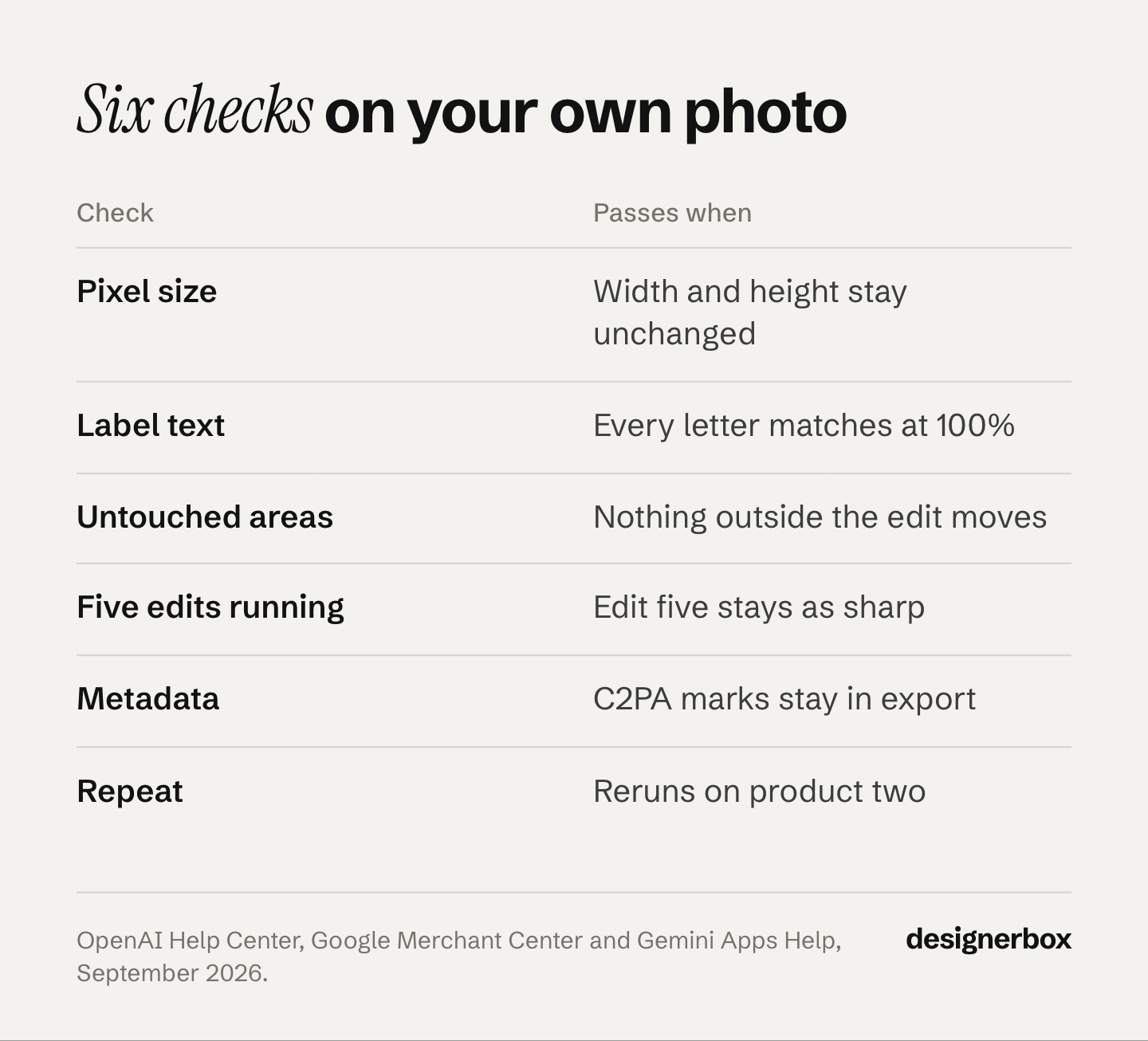
- Pixel size. Note the width and height of your photo. Make one edit and download the result. If the file comes back smaller, zoom and print will show it.
- Label and logo text. Zoom to 100% on every word on the product. Compare each letter with the original. A changed letter is a product change, not a style change.
- Untouched areas. Place the original and the edited file on two layers. Switch between them. Anything that moves outside the area you edited is a change you did not ask for.
- Five edits in a row. Make five different edits on the same photo, one after another. Compare edit five with the original for sharpness and color. Some tools lose detail with each pass.
- File metadata. Check what the file carries after export. ChatGPT images carry C2PA metadata and a SynthID watermark. Google Merchant Center says images made with generative AI must keep metadata that marks them as AI-generated (Google Merchant Center image requirements, read 2 October 2026). Do not strip it on export. This is general information, not legal advice.
- Repeat. Try the same edit on a second product. Count the steps you had to redo. If the answer is all of them, the tool fits one-off work, not a catalog.
Checks 4 and 6 are the ones a quick trial skips. A chat editor can pass checks 1 to 3 on a single photo and still fail check 6, because nothing is saved between conversations. The low-resolution product image guide covers what to do when check 1 fails.
Which AI photo editor fits your job
Match the tool to how often the edit repeats.
- You edit a few hero images a month. Photoshop, or Luminar if you want to own the software. You get full control, and the time per image is acceptable.
- You need one quick fix today. Gemini, ChatGPT, Firefly or Pixlr. Each has a free way to start. Run checks 1 to 3 before the file goes live.
- The photo ends up in an ad or a post. Canva, so the edit and the design stay in one tool.
- You clean up many product photos every week. Photoroom, Pixelcut or Claid. Batch editing and an API remove the hand work.
- Every new product needs the same set of edits and scenes. Save the edits once as a workflow. That is the job DesignerBox is built for.
For portrait and skin work, the AI photo retouching tools comparison sorts seven tools by job. For the edits each sales channel requires, see the ecommerce image editing guide. For cutouts alone, the background remover comparison tests hair, glass and fine edges.
The same edit on every product
DesignerBox is AI creative production for brands and agencies. Anyone can make an AI picture. Making hundreds that still look like your brand is the hard part. Editing has the same problem: the fortieth product has to get the same background, light and framing as the first. The Edit an image app takes a picture and one line of text and returns the edited photo.
The image editor changes one picture from a description or a brush. You change the background, an object, the light or the color, or retouch skin. Each edit keeps the detail and the resolution of the edit before it, so the fifth change is as sharp as the first. That is check 4 above.
For check 6, you save the edits as a workflow once. Your brand rules sit in a brand profile, and the workflow reads them on every run.
Batch runs one workflow over a whole sheet of products. You review the results in one pass, keep or discard per row, and re-run one row alone. Critic steps score the results, and best-of-N keeps the best one. The cost is shown before you press Run.
The full workflow from the first product photo to the finished ad, in one subscription. Templates, workflows, apps, batch, the image editor, the video editor and brand profiles sit in one place.
The limits, stated plainly (DesignerBox pricing, September 2026):
- It starts from a photo of your real product. Label text and color are still your check before a result goes live.
- The image editor starts on the Premium plan. Uploading your own photos and the commercial license start on the Pro plan. Plans and credits are on the pricing page.
- Delivery is a download. You can also send results with a webhook or an S3 step.
- Team features are on the Ultra plan. Every plan below Ultra is one seat.
A free plan for your first run
The free plan runs on sample products. Start from a template and see the cost before you run it.
FAQ
What is the best AI photo editor in 2026?
It depends on the edit. Adobe Photoshop leads for pixel-level control on a hero image. Canva fits edits that end up in a design. Gemini and ChatGPT are the fastest way to edit one photo from a sentence. Photoroom, Pixelcut and Claid handle product photos in batch. DesignerBox fits the same edit repeated on every product.
Is there a free AI photo editor?
Yes. Pixlr has a free version that works without an account. Adobe Firefly gives free accounts daily generations. In the Gemini app, Nano Banana 2 makes edits, and paid plans add Nano Banana Pro. Check the vendor’s page for current limits, because they change often.
Which AI photo editor is best for product photos?
For cutouts, backgrounds and shadows on many products, Photoroom, Pixelcut and Claid are built for the job and offer batch editing. For one hero image, Photoshop gives the most control. If every new product needs the same edits and scenes, a saved workflow in DesignerBox repeats them.
Do AI photo editors reduce image quality?
Some do. An edit can return a smaller file, soften fine detail or change label text. Run the six checks in this guide on your own photo: pixel size, label text, untouched areas, five edits in a row, metadata and repeatability. Check the result at 100% zoom, not at thumbnail size.
Can I use AI-edited photos in ads and on marketplaces?
Usually yes, if the photo still shows the real product. Marketplaces ask that images represent the product accurately. Google Merchant Center requires images made with generative AI to keep their AI metadata. Check each platform’s own rules before you publish. This is general information, not legal advice.
Are ChatGPT and Gemini good photo editors?
For a single photo, yes. Both edit an uploaded image from a sentence, and ChatGPT adds a selection tool for one region. Neither saves an edit to repeat on the next photo. Google’s help page says Nano Banana 2 Lite is not designed for multiple edits, so test a chain of edits first.
Why do so many AI photo editors give similar results?
Many of them run the same models. Canva says Magic Edit uses Google’s Nano Banana. Photoshop offers partner models from Google and Black Forest Labs, and Firefly adds OpenAI. Pixlr lists Flux, Kling, Recraft, Veo and Qwen. The model sets the look of an edit. The tool around it sets the control, the file you get back and whether the edit repeats.
Sources
- Adobe Photoshop Generative Fill page (adobe.com/products/photoshop/generative-fill, September 2026)
- Adobe Photoshop generative AI page (adobe.com/products/photoshop/ai, September 2026)
- Adobe Firefly AI photo editor page (adobe.com/products/firefly/features/ai-photo-editor, September 2026)
- Canva AI photo editing page (canva.com/features/ai-photo-editing, September 2026; the live page blocks automated reading, so the wording was checked on the Wayback Machine copy of 23 September 2026)
- Gemini Apps Help: generate and edit images, read 24 September 2026
- Gemini API image generation documentation, September 2026
- OpenAI Help: Images in ChatGPT, read 2 October 2026
- OpenAI Help: provenance signals in OpenAI-generated content, read 24 September 2026
- OpenAI image generation guide, September 2026
- Pixlr home page (pixlr.com, September 2026)
- Skylum Luminar page and FAQ (skylum.com/luminar, September 2026)
- Photoroom batch editor page (photoroom.com/batch, September 2026)
- Photoroom API page (photoroom.com/api, September 2026)
- Pixelcut home and Bulk Image Editor pages (pixelcut.ai and pixelcut.ai/bulk, September 2026)
- Claid home page (claid.ai, September 2026)
- Google Merchant Center image requirements, read 2 October 2026
- DesignerBox image editor page (designerbox.ai/product/image-editor, September 2026)
- DesignerBox pricing (designerbox.ai/pricing, September 2026)
Tool features verified from each vendor’s own pages as of September 2026. The ChatGPT Images help page and Google’s Merchant Center image page were re-checked on 2 October 2026. Features and free tiers change often. Individual results vary.