To batch edit photos, you apply one set of edits to many files at once. There are five common methods: copied settings in Lightroom Classic, Photoshop’s Image Processor, a Photoshop action run with the Batch command, a browser batch editor, and a saved AI workflow or API. Batch the edits that have one right answer for every file. Check color, edges and logos on each image.
Two hundred product photos arrive from a shoot on Friday. Each one needs the same crop, the same white background and the same export. At three minutes a photo, that is ten hours of repeated clicks. The arithmetic is illustrative. The pattern is real: the edits repeat, and the hand work grows with every product.
This guide is for teams that edit product photos for a store or for clients. It covers the five methods, the edits that are safe to batch, the steps in order, and the checks that catch a bad batch. When the batch is a whole product sheet, batch in DesignerBox runs one workflow over it. That part comes last.
Key Takeaways
- Five methods: copied settings in Lightroom Classic, Photoshop’s Image Processor, a Photoshop action with the Batch command, a browser batch editor, and a saved AI workflow or API.
- Batch what has one right answer: size, file format, color profile and file names are the same for every file in a set.
- Sample what depends on the photo: background removal and shadows work on most files and fail on hair, fur and glass.
- Keep two edits by hand: matching the color to the real product, and cleaning dust or creases.
- Group before you batch: one batch per lighting setup. A mixed batch copies the wrong white balance to half the files.
- An AI edit makes new pixels. Google’s own guide tells you to describe a logo in detail if the edit must keep it.
- Check the first, the last and the hardest file, then count the files. A batch that skipped ten files looks finished.
What does it mean to batch edit photos?
To batch edit photos is to choose the edits once and apply them to a whole set of files. The software repeats the same steps on each file, so the hundredth photo gets the same crop, size and export as the first. A batch saves time only when the files are alike. Photos from one shoot, one light and one product type batch well. A mixed folder does not.
There are three kinds of batch edit, and they behave differently.
- Copied settings. You edit one photo and copy its values to the rest. The same numbers land on every file.
- Recorded steps. You record a sequence once, and the software replays it on a folder.
- AI edits. A model looks at each photo and makes the edit, such as a cutout or a new background. The result can differ from file to file.
The first two repeat exactly. The third one needs a review step, because the model decides something new for each photo. That difference sets how much checking a batch needs.
Five ways to batch edit photos
Each method fits a different job. The table gives the short version, and the notes below give the source for each one.
| Method | How it works | Fits | Limit to know |
|---|---|---|---|
| Lightroom Classic, copied settings | Copy the settings of one photo and paste them to the selected photos | Raw files from one lighting setup | The same values land on every photo |
| Photoshop Image Processor | Converts and resizes a folder in one operation | Format, size and color profile | It converts and resizes; it does not retouch |
| Photoshop action with Batch | Replays a recorded action on a folder | Any sequence you can record | The action needs its own save step |
| Browser batch editor | Upload a set, choose the edits, export | Small sets, no installed software | A limit on files in one batch |
| Saved AI workflow or API | Sends every file through the same saved steps | A whole catalog, and new photos every week | Results vary, so the batch needs a review |
Lightroom Classic: copy the settings
Adobe’s help page says you can “batch-apply edit settings to multiple photos”. You open one image in the Develop module and select Copy. You choose which settings to copy. Then you select the other images in the Filmstrip and select Paste (Adobe, copy and paste edit settings, read October 2026).
This is the right method for exposure and white balance on raw files. It works when every photo in the set had the same light.
Photoshop Image Processor: convert and resize
The Image Processor handles the plain jobs. Adobe lists four: convert a set of files to JPEG, PSD or TIFF, process camera raw files, resize images to fit set pixel dimensions, and embed a color profile or convert files to sRGB. Adobe adds that, unlike the Batch command, it “works directly without requiring an action” (Adobe, Image Processor overview, read October 2026).
Photoshop actions: replay any sequence
Adobe describes the Batch command as “running an action on groups of files”. You record the action once, then point Batch at a folder. It can include subfolders. One detail causes lost work: Adobe says to check that the action includes a Save As step, “as files won’t save automatically without it” (Adobe, batch-process files, read October 2026).
A droplet turns the same action into an icon. You drag a file or a folder onto the icon, and Photoshop runs the action (Adobe, create droplets, read October 2026).
Browser batch editors: small sets, nothing to install
Several online editors run a batch in the browser. Each one states a limit for one batch. Pixlr’s page says you upload up to 100 photos (pixlr.com/tools/batch-edit, October 2026). Picsart’s page says its batch editor handles up to 50 images in one pass (picsart.com/batch-photo-editor, October 2026). Photoroom’s page says its AI tools, such as Ghost Mannequin and Recolor, run on up to 250 images at once (photoroom.com/batch, October 2026).
These editors cover crop, resize, background removal and export. They suit a small set and a team with no photo software. For edits on one photo at a time, the best AI photo editors by job compares ten tools.
A saved AI workflow or an API: the whole catalog
The fifth method sends every file through the same saved steps without a person in the editor. An API does it from code. Photoroom, for example, lists two endpoints: one that removes backgrounds, and an Image Editing API that resizes, replaces backgrounds, adjusts lighting and adds shadows (photoroom.com/api, October 2026). A saved workflow does the same job from a form or a sheet, with no code.
This method fits a catalog that grows every week. It also carries the most risk per file, because an AI step makes new pixels. Used cars are the clearest case, and AI rules for dealership car photos explains why the vehicle itself stays untouched. The next section sorts the edits by that risk.
Which edits are safe to batch?
An edit is safe to batch when the right answer is the same for every file. Size, format, color profile and file names pass that test. Background removal and shadows pass on most files and fail on a few, so you batch them and check a sample. Color matching and clean-up depend on the single product, so they stay by hand.
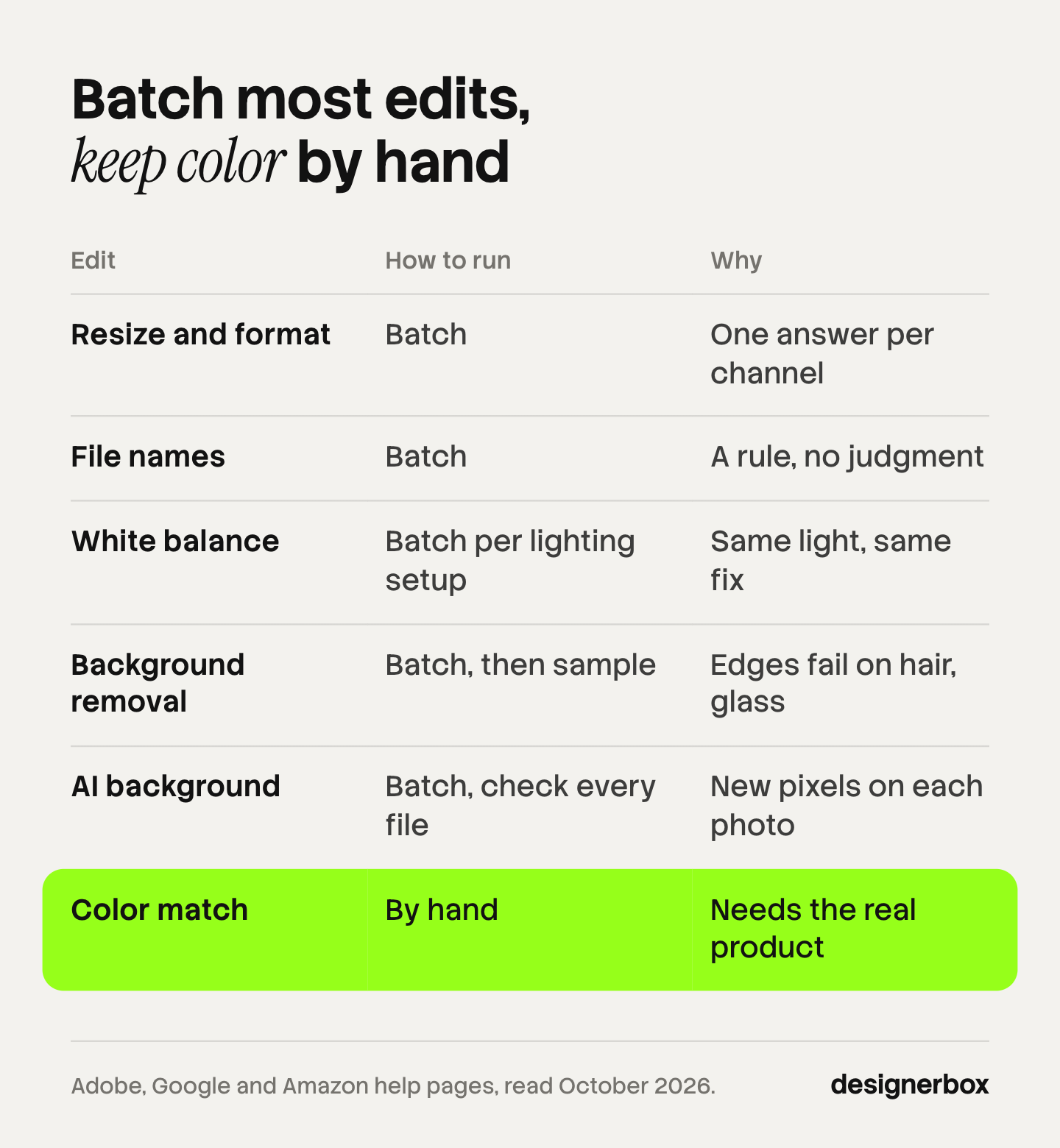
| Edit | Batch it? | Why |
|---|---|---|
| Resize and file format | Yes | Each channel sets one size and one format |
| Color profile to sRGB | Yes | The same conversion for every web file |
| File names | Yes | A naming rule needs no judgment |
| White balance and exposure | Yes, inside one lighting setup | The light was the same, so the fix is the same |
| Background removal | Yes, then check a sample | Edges fail on hair, fur, lace and clear glass |
| Shadow and padding | Yes, then check a sample | A wrong cutout gives a wrong shadow |
| AI background or relight | Yes, then check every file | The model makes new pixels on each photo |
| Dust and crease clean-up | No | Each product has different marks |
| Color match to the real product | No | Only a person with the product can confirm it |
The AI row needs the most care. Google’s guide to its image models says: “To ensure critical details (like a face or logo) are preserved during an edit, describe them in great detail along with your edit request” (Google, Gemini image generation guide, read October 2026). So a logo, a print or the text on a label can change during an AI edit. Look at those parts on every file. The guide to AI product photo accuracy lists the changes to look for.
Fine edges are the second risk. The background remover comparison shows how tools handle hair, glass and fur.
How to batch edit product photos, step by step
The order matters. Fix color before the cutout, and export last. Each step below is one batch.
- Sort the files into groups. Make one group per lighting setup and product type. Photos from the white table go in one group. Photos from the window go in another.
- Edit one reference photo per group. Set white balance from a gray card or a known neutral. Compare the screen with the real product.
- Copy the settings to the group. Paste them to the other photos in that group only.
- Remove the background and set the canvas. Use one fill and one padding value for the whole set. Amazon asks for a pure white main image, RGB 255, 255, 255, with the product at 85% of the frame.
- Check a sample. Open the first file, the last file and the hardest file at 200% zoom.
- Fix the exceptions by hand. Clean dust, creases and bad edges on the files that need it.
- Export one batch per channel. Resize down from the full-size file. Convert to sRGB and name the files by product.
- Keep the originals. Write the batch to a new folder. A batch that saves over the source files cannot be repeated.
The export sizes come from each channel’s own rules, read on 1 October 2026.
- Amazon: 500 to 10,000 px on the longest side, with zoom from 1,000 px. JPEG is recommended (Amazon product image requirements).
- Google Shopping: at least 500 x 500 px from 31 January 2027, under 64 megapixels and 16 MB. Google recommends about 1,500 x 1,500 px (Google Merchant Center image requirements).
- Shopify: up to 5,000 x 5,000 px or 25 megapixels, under 20 MB. A 2,048 x 2,048 px square “usually displays best” (Shopify product media types).
The ecommerce image editing guide covers the full rules for each channel, including Etsy. When the export is done, the four Shopify bulk upload routes show how the files reach the store. For the color step, the guide to fixing product photo lighting shows which color casts you can still fix after the shoot.

Where does a batch go wrong?
A batch repeats a mistake as fast as it repeats a good edit. Five failures cause most of the damage, and each one has a cheap fix.
- Mixed light in one batch. Settings copied from a window photo make the table photos blue or yellow. Group by lighting setup first.
- Lost originals. A batch that saves and closes each file writes over the source. Send the results to a new folder.
- No save step. A Photoshop action with no Save As step processes every file and saves none of them, as Adobe’s page warns.
- Small files made large. A batch resize can stretch a small supplier photo to pass a minimum. Amazon’s rule says: “Do not artificially enlarge small images.” The low-resolution product image guide covers the honest options.
- Removed AI metadata. Google requires that images made with generative AI keep their AI metadata, such as the IPTC DigitalSourceType tag. Some export settings remove metadata to make files smaller. Check one exported file before you upload the set.
The last point is general information, not legal advice. The marketplace rules guide covers the label rules for each channel.
How do you check a batch without opening every file?
Check a sample for the edits that repeat exactly, and check every file for the edits an AI model made. A sample of three files is enough for size, format and names: the first, the last and the hardest one. For AI edits, look at each result next to its source photo, because each one is a new picture.

Four checks cover most batches.
- Count the files. The number of results must equal the number of sources. A skipped file is the easiest error to miss.
- View the set as a grid. A wrong crop or a gray background is easy to see when all the thumbnails sit together.
- Measure, do not guess. Sample the corner of a white background. It should read 255, 255, 255. A value of 250 looks white and is not pure white.
- Compare the hardest file with the product. Pick the product with fine edges, a print or small text. If that one is right, the plain ones usually are.
For large sets, the bulk product images guide explains how to review hundreds of results by exception. The consistent product images guide covers the written spec that makes one product photo match the next.
One workflow for the whole sheet
DesignerBox is AI creative production for brands and agencies. Scale your images, ads and video with AI and keep your brand on every piece: build the workflow once with your brand rules, run it on every product, see the cost before each run, and keep everything from the first product photo to the finished ad in one place.
Anyone can make an AI picture. Making hundreds that still look like your brand is the hard part. A batch has the same problem as the methods above: the last product has to match the first. So you save the edits as a workflow once. The background, the light and the framing sit in its steps. Your brand rules sit in a brand profile, and the workflow reads it on every run.
Batch runs that workflow over a whole sheet of products. You review the results in one pass. You keep or discard per row, and you re-run one row alone. Critic steps score the results of a run, and best-of-N keeps the best one. For one picture that needs more work, the image editor makes one edit after another, and the picture keeps its detail and resolution.
The full workflow from the first product photo to the finished ad, in one subscription. Templates, workflows, apps, batch, the image editor, the video editor, brand profiles and Assets sit in one place. The page for ecommerce brands shows the product photo job.
The limits, stated plainly (DesignerBox product pages, October 2026):
- It starts from a photo of the real product. The channel rules above still apply to every result.
- Color is still your check. Compare results with the physical product before they reach your store.
- A plain resize needs no AI. For format and size only, Photoshop’s Image Processor or a browser editor does the job.
- Delivery is a download. You can also send results with a webhook or an S3 step. You add the results to your store yourself.
- Plan gates apply. Uploading your own photos and the commercial license start on the Pro plan. The image editor starts on the Premium plan. Team features, shared brand kits and white label are on the Ultra plan, and every plan below Ultra is one seat.
Plans and credits are on the pricing page.
A free plan for your first run
Start from a template and see the cost before you run it. The free plan runs on sample products.
FAQ
How do I batch edit photos?
Choose the edits on one photo, then apply them to the rest. In Lightroom Classic, copy the settings and paste them to the selected photos. In Photoshop, record an action and run it on a folder with the Batch command. Online batch editors and saved AI workflows do the same from a browser.
Can I batch edit photos without Photoshop or Lightroom?
Yes. Browser batch editors crop, resize, remove backgrounds and export a set of files with no installed software. Each one limits the number of files in a batch. A saved AI workflow or an API handles larger sets, and it needs a review step because an AI edit can differ from file to file.
Which photo edits should not be batched?
Keep two edits by hand: matching the color to the real product, and cleaning dust or creases. Both depend on the single product in the photo. White balance is safe to batch only inside one lighting setup. AI edits can run as a batch, but check every result against its source photo.
How many photos can I edit in one batch?
The Adobe pages cited here state no file limit for a batch. Online editors state their own limits. Pixlr’s page says 100 photos, Picsart’s says 50, and Photoroom’s page says 250 for its AI tools, all read in October 2026. In DesignerBox, batch runs one workflow over a sheet of products, and the cost is shown before the run.
Does batch editing reduce image quality?
A batch does not lower quality by itself. Three settings can. Saving a JPEG again and again adds compression each time. Enlarging a small file makes it soft. A wrong color profile changes the colors on screen. Export once from the full-size file, in sRGB, at the size the channel asks for.
What is the best photo editing workflow for product photos?
Use one order for every shoot: sort the files by lighting setup, correct one reference photo, copy the settings to its group, remove the background, check a sample, fix the exceptions by hand, then export one batch per channel. Keep the originals in a separate folder so you can repeat the batch.
Is batch editing with AI allowed on Amazon and Google?
Both channels allow edited images that show the product accurately. Amazon asks for a metadata tag when a person in the image was made fully by AI. Google asks you to keep the AI metadata in images made with generative AI. This is general information, not legal advice. Check each channel’s page before a large upload.
Sources
- Adobe, copy and paste edit settings in Lightroom Classic: batch-apply edit settings to multiple photos (helpx.adobe.com, read 1 October 2026)
- Adobe, Image Processor overview: JPEG, PSD and TIFF conversion, camera raw, resize to fit, sRGB, no action required (helpx.adobe.com, read 1 October 2026)
- Adobe, batch-process files in Photoshop: the Batch command, subfolders and the Save As step (helpx.adobe.com, read 1 October 2026)
- Adobe, create droplets from actions in Photoshop (helpx.adobe.com, read 1 October 2026)
- Google, Gemini API image generation guide: describing a face or logo in detail to keep it during an edit (ai.google.dev, read 1 October 2026)
- Amazon product image requirements: pure white main image, 85% of the frame, 500 to 10,000 px, zoom from 1,000 px, no artificial enlargement, the tag for AI-made people (sellercentral.amazon.com, read 1 October 2026)
- Google Merchant Center image requirements: 500 x 500 px from 31 January 2027, 64 megapixels, 16 MB, AI metadata (support.google.com, read 1 October 2026)
- Shopify Help Center, product media types: 5,000 x 5,000 px or 25 megapixels, 20 MB, 2,048 x 2,048 px square (help.shopify.com, read 1 October 2026)
- Pixlr batch editor page: up to 100 photos in one upload (pixlr.com/tools/batch-edit, October 2026)
- Picsart batch photo editor page: up to 50 images in one pass (picsart.com/batch-photo-editor, October 2026)
- Photoroom batch page and API page: AI tools on up to 250 images at once, a background removal endpoint and an Image Editing API (photoroom.com/batch and photoroom.com/api, October 2026)
- DesignerBox batch, brand, image editor and pricing pages (DesignerBox, October 2026)
Software steps and channel rules verified from each company’s own help pages on 1 October 2026. No competitor price appears in this guide. The ten-hour example is illustrative arithmetic. Platform rules change often, so check each page before a large upload. Individual results vary.