
An AI image generator Chrome extension makes pictures without a new tab. You open it beside the page you work on, add a prompt or a photo, and copy the result into that page. The useful ones differ on three points: what the extension can read, where the results go, and whether the next picture keeps the same look as the last one.
You have the shop admin open. A new product needs four images, and the ad manager wants a square version by noon. Each picture means another app, an export and an upload. The picture you make in a hurry today rarely matches the one from last month.
This guide compares the three kinds of browser image tools and gives six checks to run before you install one. It shows how to see what an extension can read on your pages. Then it shows how the DesignerBox Chrome extension handles each check. It is written for brand and agency teams who make product pictures every week.
Key Takeaways
- Three kinds exist. Gemini in Chrome is built into the browser. Single-purpose generators live on the Chrome Web Store. Some extensions open a panel into a full creative workspace.
- A side panel keeps your page in view. Chrome’s Side Panel API shows an extension beside the page, and the panel can stay open as you move between tabs.
- Site access is the first check. An extension that can read and change the pages you visit can also read your shop admin. You can limit it under Details in Manage extensions.
- Where the results go matters. A downloads folder works for one picture. A shared library works when a colleague needs the file next week.
- The look is the hard part. A prompt alone changes the light and the framing each time. Saved brand rules keep every picture in the same look.
- The DesignerBox extension runs no code on the pages you visit. It talks only to DesignerBox’s own servers, and every result lands in your Assets.
- The job that repeats belongs in a workflow. The panel makes the picture you need now. A saved workflow makes the same picture for the next forty products.
What does an AI image generator Chrome extension do?
An AI image generator Chrome extension adds image making to the browser itself. You open it from the toolbar, with a keyboard shortcut or with a right-click on an image. You type a prompt or add a photo, and the extension returns pictures.
You then download them, copy them or drag them into the page you were working on. There is no second app to open.
Extensions show their controls in one of three places: a small popup under the toolbar icon, a new tab, or the side panel. The side panel matters most for this job. Chrome’s Side Panel API lets extensions “display their own UI in the side panel”, and the panel can stay open when you move between tabs (Chrome for Developers, read September 2026). It needs Chrome 114 or newer.
Some extensions also add a keyword to the address bar. Chrome’s omnibox API lets an extension register a keyword with the address bar (Chrome for Developers, read September 2026). You type the keyword and then a prompt, straight into the address bar.
Three kinds of browser image tools
The tools that make AI images in Chrome fall into three groups. They differ in where they run and in what they remember between pictures.
| Kind | Where it runs | Best for | Check first |
|---|---|---|---|
| Gemini in Chrome | Chrome’s own side panel | One edit to an image in the current window | Whether Google offers it for your country and account |
| Single-purpose generator | The extension’s own window or tab | One picture from a prompt or a photo | Site access, the last update date, where files are saved |
| A panel into a creative workspace | A side panel signed in to your account | Pictures that must match your brand, kept in one library | The plan each feature needs |
Gemini in Chrome
Google built image editing into Chrome itself. Gemini in Chrome opens in a side panel. It uses Nano Banana to transform images in your current browser window, with no copy-pasting or re-uploading (blog.google, read September 2026). Google announced these features in January 2026 for users in the US on Windows, macOS and Chromebook Plus.
Google’s AI in Chrome page says you can ask Gemini to “transform an image you find on the web”. The same page says Gemini in Chrome “isn’t available to everyone yet”. You need an eligible account, in a country where Google offers it.
Gemini in Chrome fits the job of one edit to one image, and there is nothing to install. When the job is the same shot on forty products, the look has to be saved somewhere you can run again.
Single-purpose generators on the Chrome Web Store
The Chrome Web Store lists many extensions that turn a prompt or a photo into images. One listing, AI Image Generator, makes images from text, transforms an uploaded photo and downloads the result (chromewebstore.google.com, September 2026). AutoFly takes a different job: it enters a list of prompts into supported AI image sites in your browser, so one list makes many images (chromewebstore.google.com, September 2026).
These are quick to try. Each listing shows its developer, its last update date and a Privacy section. Read all three before you install.
A panel into a creative workspace
The third kind is a side panel into a tool you already use for brand work. It signs in with the same account, uses the same credits and saves to the same library. The DesignerBox Chrome extension works this way, and it is covered in detail below.
Six checks before you install
Run these six checks on any AI image extension, including ours. You can run each one on the store listing or in Chrome’s settings.
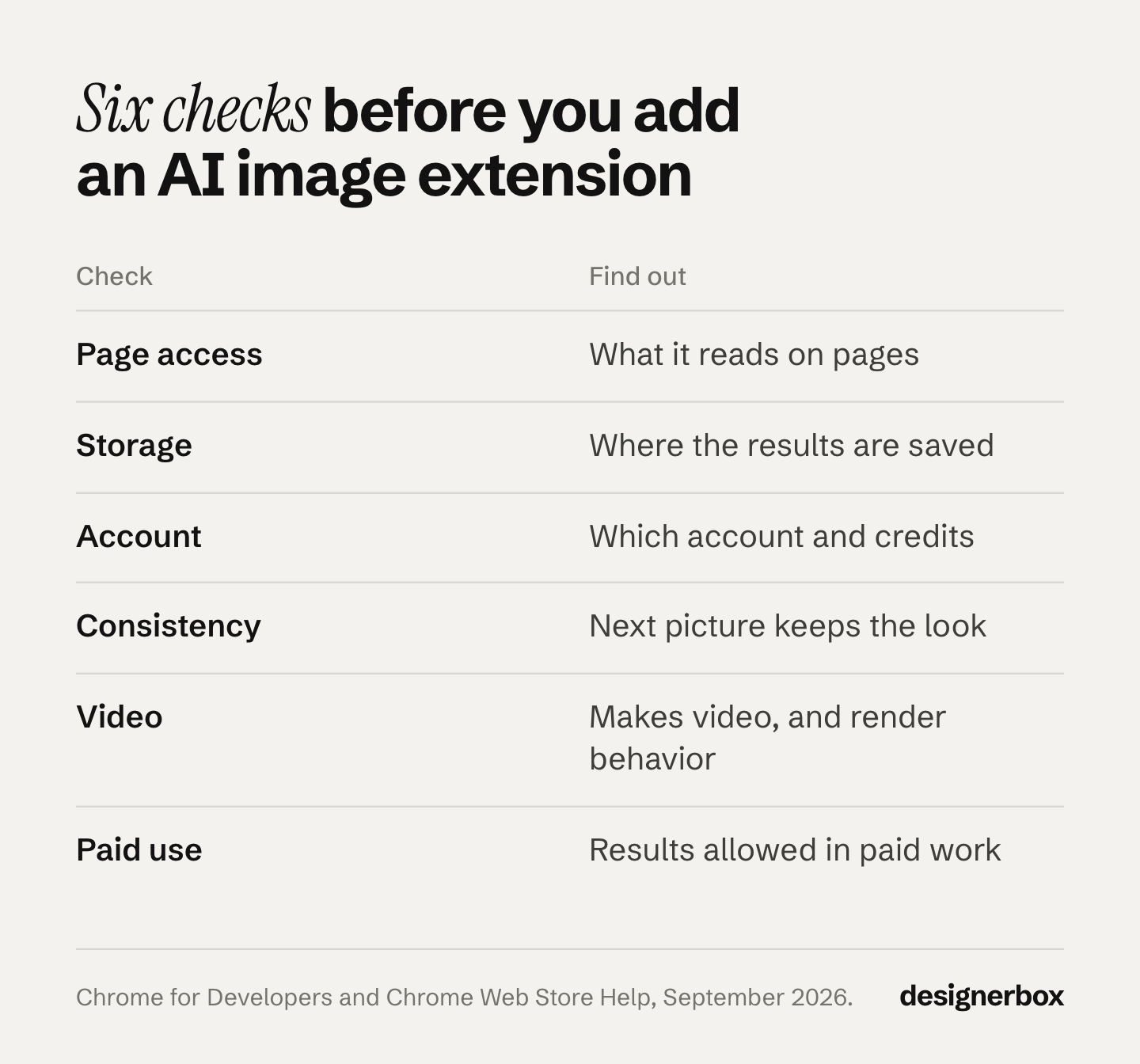
- What can it read? Content scripts can “read details of the web pages the browser visits, make changes to them, and pass information to their parent extension” (Chrome for Developers, read September 2026). Your shop admin and your ad account are web pages too. Prefer an extension that receives an image or a text only when you choose an action.
- Where do the results go? Some extensions save to your downloads folder. Others save to a library in your account. A library matters when a colleague needs the file next week.
- Which account and which credits? A new extension often means a new login and a new balance. A panel into a tool you already pay for uses the plan you have.
- Does it keep your look? A prompt alone changes the light, the framing and the background from one picture to the next. A saved template or saved brand rules keep them fixed.
- Can it make video, and what happens during the render? A clip takes longer than a picture. Check whether you can close the panel and get a notice when the clip is ready.
- Can you use the results in paid work? Read the license terms on the vendor’s own site. Also check the source picture: a right-click on someone else’s image gives you no rights to it.
How to see what an extension can read
Before you install, open the store listing and read its Privacy section. Developers must disclose the data they collect, and the Chrome Web Store shows those disclosures to users (Chrome for Developers, read September 2026).

When you install, Chrome shows a warning for some permissions. The “tabs” permission shows “Read your browsing history”. The “notifications” permission shows “Display notifications”, and “clipboardWrite” shows “Modify data you copy and paste” (Chrome permissions list, read September 2026). The permissions for a side panel and for a right-click menu show no warning.
After you install, open Chrome and select More, then Extensions, then Manage extensions. Select Details on the extension. Next to “Allow this extension to read and change all your data on websites you visit”, choose On select, On specific sites or On all sites (Chrome Web Store Help, read September 2026). On select is the narrowest of the three.
The DesignerBox Chrome extension
DesignerBox is AI creative production for brands and agencies. Scale your images, ads and video with AI and keep your brand on every piece: build the workflow once with your brand rules, run it on every product, see the cost before each run, and keep everything from the first product photo to the finished ad in one place.
The Chrome extension opens a side panel beside any page. You add a product photo or a prompt, press Run, and copy or download the result. You never leave the page. The panel uses the same account, the same credits and the same Assets as the web app (DesignerBox Chrome extension page, September 2026).
What the panel makes
- Images. A prompt or a product photo becomes finished pictures. You pick a model and a ratio, and you can add reference pictures.
- Video. You make a short clip from text or from a photo. The clip renders in the background, and Chrome tells you when it is ready.
- Templates and Assets. You start from a DesignerBox template. Then you browse, bookmark and download everything you have made.
What it adds to the browser
- Right-click an image. Choose “Use image in DesignerBox” to start from it, or “Animate this image in DesignerBox” to make a clip.
- Right-click selected text. The panel makes a picture from that text.
- Keyboard shortcut. Alt+Shift+D opens the panel on any page.
- Address bar. Type db, then your prompt, to start a picture without the panel.
- Copy and drag. Copy a result to the clipboard, or drag it into a document, a canvas or an upload field.
The extension talks only to DesignerBox’s own servers. It asks for access to one address, api-app.designerbox.ai. It runs no code on the pages you visit. It receives an image or a text only when you right-click and choose a DesignerBox action (DesignerBox on the Chrome Web Store, version 1.3.1, September 2026).
Three jobs a side panel handles
The panel is for the picture you need while a page is open. Brand and agency teams do three of these jobs every week.

The listing kit in the shop admin
Open the product page in your store admin. Open the panel, add the product photo and run a template. Drag each result into the image upload field. The panel does not upload for you, so you decide which pictures the shop shows.
Our guides to Shopify product images and AI product listing images cover the sizes and the image slots. For many files at once, Shopify bulk upload images compares four routes and their limits.
The ad variant in the ad manager
A campaign needs a square version of an image that already works. Right-click your own ad image and choose “Use image in DesignerBox”. Make the new size or the new scene, then drag it into the ad. The sizes each platform asks for are in image ad specs for five platforms. For many variants at once, read our guide to ad variants at scale.
The picture for a brief
Select a line in the brief, right-click and make a picture from that text. Drag the result into the doc, the deck or the moodboard.
For agencies, each client’s store is one more tab. Keep one brand record per client, so each client’s pictures follow that client’s rules.
Team features, shared brand kits and white label are on the Ultra plan. Every plan below Ultra is one seat. The agency page covers that setup.
From one picture to the whole catalog
Anyone can make an AI picture. Making hundreds that still look like your brand is the hard part.
The panel makes the picture you need now. When forty products need the same shot, make the job repeatable:
- Save the steps as a workflow. The background, the light, the framing and the crop stay fixed.
- Keep your rules in brand. You add your logos, fonts, colors and rules once. The workflow reads them on every run.
- Publish the workflow as an app. A colleague completes a short form and presses Run.
- Run it over a sheet with batch. You review the results in one pass.
Our guide to the bulk image generator covers the sheet. Our guide to AI brand consistency covers the brand record.
The full workflow from the first product photo to the finished ad, in one subscription. One account runs the Chrome extension, the web app, the Figma plugin, the iOS app and the MCP server. DesignerBox has 68 tools over MCP. So an AI chat such as Claude, ChatGPT or Cursor can run DesignerBox too, and our guide covers the Claude setup for image models over MCP.
Plans and limits
The extension is free to install. It works with every DesignerBox plan, including the free plan. The free plan runs on sample products, and every result carries a watermark.
Your own photos, your own prompts and the commercial license start on the Pro plan. Video, virtual try-on, image upscaling and both editors start on the Premium plan (DesignerBox Chrome Web Store listing, September 2026). Plans and credits are on the pricing page.
The panel shows your plan’s credit balance. An 8-second clip costs 40 to 560 credits, depending on the model.
The extension has two limits. It is built for Chrome 116 or newer. It does not publish to a store or an ad account: you copy or drag each result into the page yourself.
Setup in three steps
- Add to Chrome. Install DesignerBox from the Chrome Web Store.
- Sign in once. If you are already signed in on designerbox.ai, the panel connects by itself. If not, one click signs you in.
- Add a photo or a prompt, and press Run. Open the panel with the toolbar icon or Alt+Shift+D. Every result lands in your Assets.
Scale content without limits.
Generate content for your products or services with AI, starting today, and keep your brand on every piece. Add the DesignerBox Chrome extension, and make your next picture beside the page that needs it.
FAQ
Is there a free AI image generator Chrome extension?
Yes. The DesignerBox Chrome extension is free to install and works on the free plan. The free plan runs on sample products, and every result carries a watermark. Gemini in Chrome is built into the browser where Google offers it. Many Chrome Web Store generators also start free, so read each listing for its limits.
Can Chrome make AI images without an extension?
Yes, where Gemini in Chrome is available. Google says Gemini in Chrome uses Nano Banana to transform images in your current browser window. Google announced it in January 2026 for users in the US on Windows, macOS and Chromebook Plus.
Are AI Chrome extensions safe to install?
Check three things. Read the Privacy section on the store listing. Read the warnings Chrome shows when you install. After you install, set the site access under Details in Manage extensions. The DesignerBox extension runs no code on the pages you visit and talks only to DesignerBox’s own servers.
What is the Chrome side panel?
The side panel is a column at the side of the Chrome window. Extensions can show their own controls there, beside the page, from Chrome 114. The panel can stay open while you move between tabs, so the page you work on stays in view.
Does the DesignerBox extension work in Microsoft Edge?
It is built for Chrome 116 and newer. Microsoft Edge supports the same Side Panel API for its sidebar. Recent versions of Edge can usually install the extension from the Chrome Web Store.
Can I start from an image on another website?
You can right-click any web image and choose “Use image in DesignerBox”. Use only images you own or have the rights to use. The commercial license for your results starts on the Pro plan.
Can the extension make video?
Yes, from the Premium plan. You make a short clip from text or from a photo. You can close the panel while it renders, and Chrome tells you when it is done. An 8-second clip costs 40 to 560 credits, depending on the model.
Sources
- Chrome Side Panel API, Chrome 114 and newer, panel open across tabs: Chrome for Developers, sidePanel API, accessed September 2026
- Content scripts, what they can read and change: Chrome for Developers, content scripts, accessed September 2026
- Permission warnings for tabs, notifications and clipboardWrite, and no warning for sidePanel and contextMenus: Chrome for Developers, permissions list, accessed September 2026
- Address bar keywords: Chrome for Developers, omnibox API, accessed September 2026
- Privacy disclosures shown to users: Chrome for Developers, privacy fields, accessed September 2026
- Site access settings, On select, On specific sites and On all sites: Chrome Web Store Help, install and manage extensions, accessed September 2026
- Gemini in Chrome in a side panel, Nano Banana image edits, US availability on Windows, macOS and Chromebook Plus, announced January 2026: blog.google, Chrome gets new Gemini 3 features, accessed September 2026
- Transforming an image found on the web, and availability by account and country: Google, AI in Chrome, accessed September 2026
- Side Panel API in the Microsoft Edge sidebar: Microsoft Learn, develop an extension for the Microsoft Edge sidebar, accessed September 2026
- AI Image Generator and AutoFly features: their Chrome Web Store listings (chromewebstore.google.com), accessed September 2026
- DesignerBox Chrome extension features, right-click actions, address bar keyword, privacy scope and plan gates: DesignerBox on the Chrome Web Store, version 1.3.1, accessed September 2026
- DesignerBox Chrome extension page (designerbox.ai/chrome-extension), September 2026
- DesignerBox plan gates: DesignerBox pricing page (designerbox.ai/pricing), September 2026
Chrome platform details verified on Chrome for Developers, Chrome Web Store Help and Microsoft Learn, September 2026. Gemini in Chrome details verified on blog.google, September 2026. DesignerBox features verified on designerbox.ai and its Chrome Web Store listing, September 2026. The Chrome Web Store listing, still version 1.3.1, was re-checked on 2 October 2026. Individual results vary.