A catalog photoshoot produces the plain, consistent images for every product a store sells. Each product gets the same shots, the same background and the same light. The hard part is the count: products multiply by colors, shots and channels. Plan that count before the shoot, and decide which products get the full set.
Here is the problem in numbers. A brand has 200 products in 3 colors each. Amazon recommends a main image plus at least six more for every product. That is 4,200 images before the store, the feed and the ads. A team that worked well at 20 products stops working at 200.
This guide shows how to plan a catalog photoshoot: how to count the images, and how to cut the count without leaving a product bare. It is written for brands with 20 to 500 products, and for the agencies that produce catalog images for them.
Key Takeaways
- A catalog photoshoot is about sameness. Every product gets the same shots, background, light and crop, so a shopper can compare two products side by side.
- Count before you shoot. Images equal products, times colors, times shots per product. Channels add files, and they should not add new images.
- Decide the standard once. Eight decisions cover background, fill, crop, light, shadow, angle order, color and file. Nobody makes them again per product.
- Write one shot set per product type. A shoe and a sofa need different shots. Products of one type need the same ones.
- Three tiers cut the count. In the worked example, three tiers bring 4,200 images down to 1,800. That is illustrative arithmetic, and every color still has its own image.
- Every color needs its own image. Google asks for a unique image for each variant, and Shopify assigns one image to each variant.
- Review is the last cost. Every image you add has to be looked at, named, uploaded and later updated.
What a catalog photoshoot covers
A catalog photoshoot is the session that produces the same set of images for every product a store sells. For the definition and the history of the term, see the DesignerBox glossary entry on catalog photography. This guide covers the plan.

Three things separate a catalog shoot from other shoots:
- Coverage. Every product is photographed, including the slow sellers.
- Consistency. Every image follows one standard, so the catalog looks like one store.
- Accuracy. The image shows the real color, shape and scale of the product.
A catalog shoot for 200 products is closer to a production line than to a creative project. Most decisions are made before the camera is turned on.
Our guide to types of product photography covers the individual shots. This guide covers the count for the whole catalog.
How is a catalog shoot different from a campaign shoot?
Catalog images and campaign images have different jobs, and the budget should follow the job.
| Catalog shoot | Campaign shoot | Editorial shoot | |
|---|---|---|---|
| Job | Show the product so a shopper can decide | Sell one idea for one season | Tell a story around the brand |
| Coverage | Every product | A few hero products | A few looks |
| Look | The same on every product | Made for one campaign | Made for one story |
| Lifetime | As long as the product is sold | Weeks or months | One issue or one drop |
| What repeats | Almost everything | Almost nothing | Almost nothing |
The last row matters most. Work that repeats can be written as a rule and run the same way each time. Work that does not repeat needs a person each time. Catalog work repeats, so it is the part of your image work that a system can carry.
How many images does a catalog need?
Count before you book a studio or open a tool. The formula is short:
Images = products × colors × shots per product
Channels come after. A channel should change the size and the crop of an image you already have. It should not start a new image.
Each channel publishes how many images it takes:
| Channel | What it asks for | What it means for the count |
|---|---|---|
| Amazon | At least one compliant main image. Amazon recommends at least six additional images and one video | Seven images per product is the target, and one is the minimum |
| Google Merchant Center | One main image and up to 10 additional images. A unique image for each variant | Every color needs its own main image |
| Shopify | Up to 250 media files per product. Each variant has one assigned image | The limit is high, so your plan sets the count |
Amazon’s numbers are on its product image requirements page. Google’s are on its additional image link page and its image link page. Shopify’s are on its product media page and its variant images page. All were read in October 2026.
Variants raise the count fast. Shopify allows up to 2,048 variants on one product (Shopify developer changelog, October 2026). Sizes rarely need their own photos. Colors and finishes do.
Now the example. 200 products, 3 colors and 7 shots give 200 × 3 × 7 = 4,200 images. The rest of this guide is about making that number smaller, or making each image cost less work.
The standard: eight decisions made once
The first way to cut work is to stop deciding. Every decision that is the same for every product goes into a written standard. You make it once, and nobody makes it again.
| Decision | Example of a written rule |
|---|---|
| Background | Pure white for the main image, light gray for the others |
| Fill | The product fills 85% of the frame |
| Crop | Square, with the product centered |
| Light | Soft light from the upper left |
| Shadow | A soft contact shadow under the product |
| Angle order | Front, three-quarter, back, detail |
| Color | Checked against the physical product before export |
| File | JPEG, 2,048 pixels square, named by product code and shot number |
Two of these are set for you on some channels. Amazon’s main image needs a pure white background with RGB values of 255, 255, 255, and the product should show as 85% of the image (Amazon Seller Central, October 2026).
The standard also protects the store. Products arrive from different suppliers and different shoots. Without one standard, each new product makes the catalog look less like one brand. Our product photography style guide shows how to write the full document, and consistent product images lists the layers it has to cover.
One shot set per product type
The second way to cut work is to decide the shots per product type, not per product. Ask what a shopper needs to see before buying this type of thing. Write the answer once.
These are starting sets. Change them for your own products.
| Product type | Shot 1 | Shot 2 | Shot 3 | Shot 4 |
|---|---|---|---|---|
| Clothing | Front | Back | Worn on a model, or a ghost mannequin | Fabric close-up |
| Shoes | Side profile | The pair at three-quarter | Sole | Top view |
| Bags | Front | Side | Inside | In hand, for scale |
| Furniture | Front | Three-quarter | Material close-up | In a room, for scale |
| Beauty | Pack front | Back label | Texture | In hand, for scale |
When a new product arrives, it takes the set for its type. Nobody starts from a blank page. A shot list template turns each set into a sheet the photographer can tick. For clothing, ghost mannequin photography explains the third shot.
Decide what the shopper needs first, and make images second. Cheap images do not help if nobody needs them. They only give you more files to check and store.
Three tiers: which products get the full set
The third way to cut work is to accept that products are not equal. A new launch and a five-year-old basic do not deserve the same budget. Retail planners sort stock into A, B and C groups by sales. You can sort image work the same way.
| Tier | Which products | Lead color | Every other color |
|---|---|---|---|
| A | Launches and bestsellers | The full set of 7 | The full set of 7 |
| B | Steady sellers | The full set of 7 | 2 images |
| C | The long tail | 4 images | 1 image |
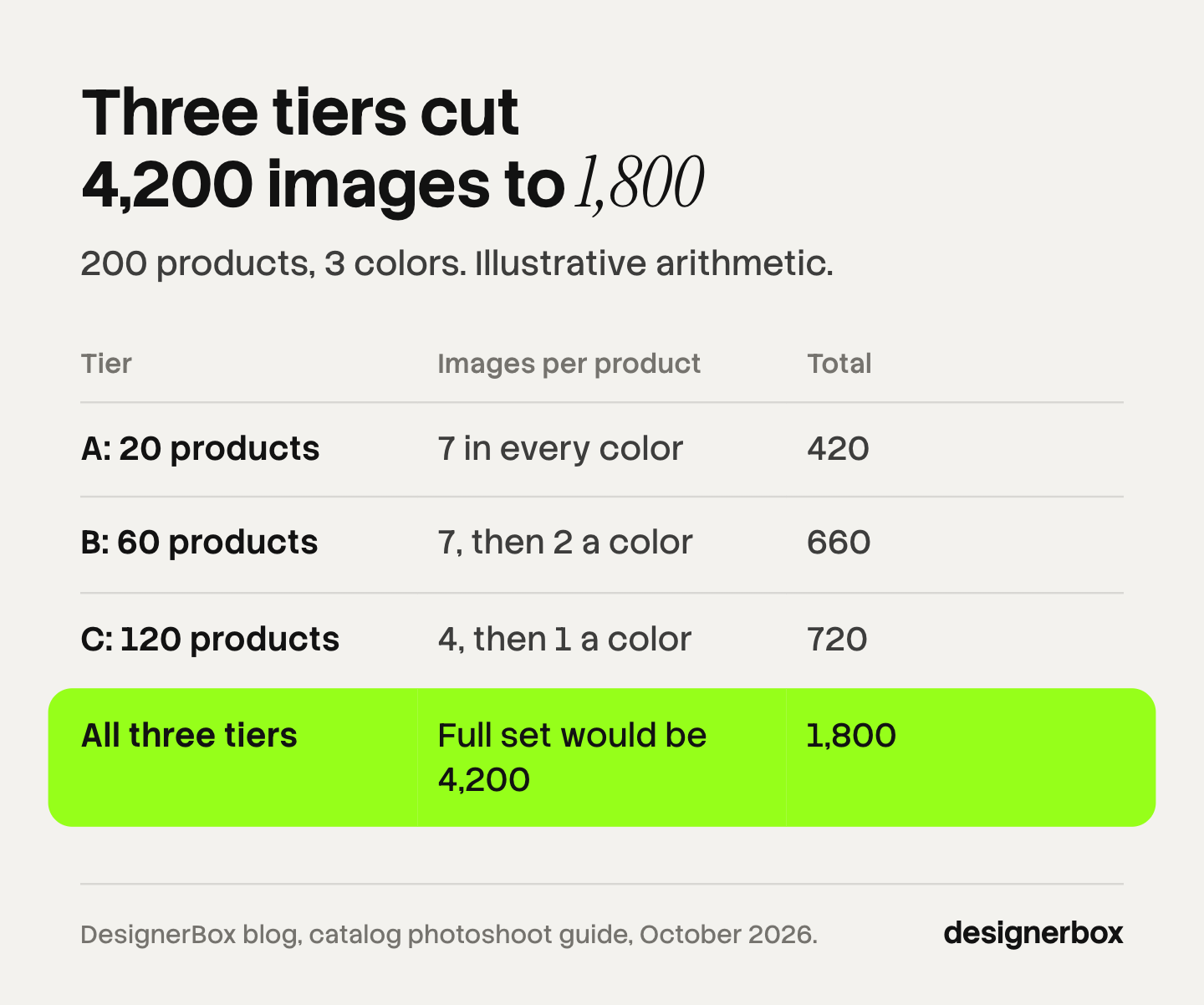
Here is the example again, with 20 products in tier A, 60 in tier B and 120 in tier C:
- Tier A: 20 × 3 colors × 7 images = 420
- Tier B: 60 × (7 + 2 + 2) = 660
- Tier C: 120 × (4 + 1 + 1) = 720
That is 1,800 images, down from 4,200. The count falls by 57%. This is illustrative arithmetic, not a measured result. Your split and your shot counts will differ.
The tiers have a cost, and you should see it clearly. A tier C color has one image, which is below Amazon’s recommended six additional images. One compliant main image is Amazon’s minimum, so the listing is allowed. It is thinner than the listing next to it. Move a product up a tier when its sales justify the extra images.
Seasonal products fit the same table. Give them the core set for their tier, and add campaign images only for the weeks they are promoted. Holiday product photography covers which image slots allow a seasonal scene.
Color variants: reshoot, recolor or reuse
Colors are where the count grows fastest, so they need their own rule. You have three options for each extra color.
| Option | How it works | When it fits | What to check |
|---|---|---|---|
| Reshoot | Photograph the product in each color | Tier A, and any material that changes with color, such as leather or metallic finishes | Cost and time per color |
| Recolor | Change the color of an approved image with software or AI | Tier B and C, plain fabrics and solid finishes | The new color against the physical sample |
| Reuse | Show one color in the shape shots, and each color in one image | Tier C | That every color still has its own image |
Google’s rule sets the floor. It asks for a unique image for each variant that shows the exact color, pattern, finish and material, and it tells sellers not to reuse one general photo across variations (Google Merchant Center Help, October 2026). So “reuse” can cover the back, the detail and the scale shots. It cannot cover the main image of a color.
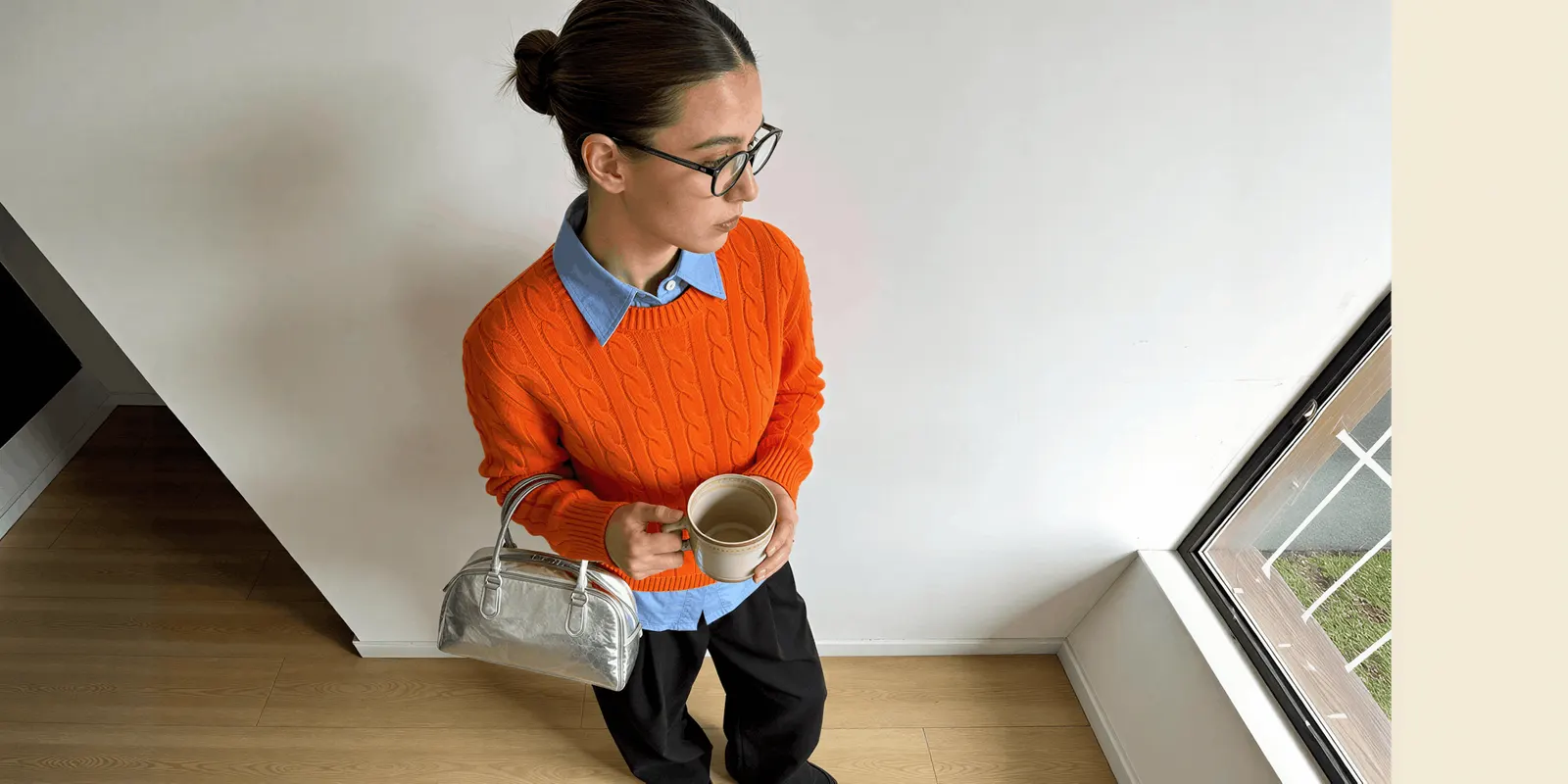
Recoloring carries one risk: the color on screen may not match the product in the box. Check each recolored image against the real sample in daylight. Our guide to an AI clothes color changer covers where recoloring holds and where it fails.
What to shoot and what to generate
A catalog needs at least one real photograph of each product. That photo is the record of what the product is. Every other image can start from it.
- Shoot: the source photo of each product, and of each color in tier A. Glass, polished metal, liquids and sheer fabric also need a camera, because they reflect and pass light.
- Edit: background, crop, fill and shadow. These follow the standard, so software can apply them to every image.
- Generate: extra angles, scenes, on-model images and recolors, built from the approved source photo.
A mistake in the source photo repeats in every image made from it. Our guide to the source product photo lists what that photo needs. For the step order from one source photo to a listing set, see how an AI photoshoot works.
Generated images come with one rule on Google. Images made with generative AI must keep the metadata that marks them as AI-generated, such as the IPTC DigitalSourceType tag (Google Merchant Center Help, October 2026). Do not strip metadata when you export. This is general information about platform rules, not legal advice.
Generated images also need a closer look. A generated scene can change the product itself: a warped print, a garbled logo, a missing seam. AI product photo accuracy lists what to check on each one.
Review: the cost that stays
Tiers cut the number of images. They do not remove the looking. A person still has to accept each image before it goes on a listing.
Three habits keep review short:
- Review by shot, not by product. Put 20 front shots side by side. A wrong crop or a warm color cast shows at once next to correct images.
- Keep the source beside the result. The reviewer compares two images and does not work from memory.
- Redo one image, not the set. A failed image goes back alone.
Naming matters here too. A fixed image file naming convention lets you find image 4 of product 137 in blue without opening a file. For the stages around the count, see our guide to the product photography workflow. For the price of the review itself, see bulk product images.
One workflow for the whole catalog
DesignerBox is AI creative production for brands and agencies. Anyone can make an AI picture. Making hundreds that still look like your brand is the hard part. That is the catalog problem in one line. The product side of the job is on the AI product photography page.
You write the standard once as brand rules. You build the shot set once as a workflow. A batch then runs that workflow over a sheet, with one product per row and up to 200 rows in a sheet. Row one and row two hundred read the same rules. The cost of the whole sheet is shown before the run (DesignerBox batch page, October 2026).
The tiers fit the same shape. One workflow makes the full set, and a second makes the short set. Each tier is its own sheet.
Review is part of the sheet. You keep or discard each result, and you re-run one row without changing the others. Fashion teams can see the on-model side on the page for fashion brands. Ads and video run in the same place. The full workflow from the first product photo to the finished ad, in one subscription.
The limits are worth stating. The source photo, the tier decision and the final check on color stay with you. DesignerBox does not publish to a store. You download the results, or send them with a webhook or an S3 step. Uploading your own photos and the commercial license start on the Pro plan. AI video, virtual try-on, upscaling, the image editor and the video editor start on the Premium plan. Every plan below Ultra is one seat. Plans and credits are on the pricing page.
Scale content without limits.
Generate content for your products or services with AI, starting today, and keep your brand on every piece. Start with one product type, check the results, then run the sheet. Get started free
FAQ
What is a catalog photoshoot?
A catalog photoshoot is the session that produces the same set of images for every product a store sells. Each product gets the same shots, background, light and crop. Most decisions are made before the shoot: the standard, the shot set per product type and the tier of each product.
How many photos does each product need in a catalog?
It depends on the channel and on the product’s tier. Amazon requires one compliant main image and recommends at least six additional images. Google Merchant Center takes one main image and up to 10 additional images. Many brands give bestsellers the full set and give long-tail products four images or fewer.
What is the difference between a catalog shoot and a campaign shoot?
A catalog shoot covers every product with the same plain shots, and the images stay in use as long as the product is sold. A campaign shoot covers a few hero products with images made for one idea and one season. Catalog work repeats, and campaign work does not.
Does every color variant need its own photo?
Every color needs at least one image of its own. Google asks for a unique image for each variant that shows the exact color and finish. Shopify assigns one image to each variant. The back, detail and scale shots can show one color, as long as the main image of each color is correct.
How do you plan a catalog photoshoot?
Count first: products, times colors, times shots per product. Then write the standard, choose one shot set per product type, and sort products into three tiers. Book the shoot only for the images that need a camera. The remaining images come from editing or generating from the source photo.
Can AI replace a catalog shoot?
AI can replace part of it. You still need one accurate photo of each product, because every generated image starts from it. From that photo, AI can make extra angles, scenes, on-model images and recolors. A person must check each result against the real product.
Can DesignerBox run a catalog shoot?
DesignerBox runs the repeat part. A saved workflow applies your brand rules to each product, and a batch runs it over a sheet of up to 200 products. You see the cost before you press Run, and you keep or discard each result. The source photo and the tier decisions stay with you.
Sources
- Amazon image count, pure white background and 85% fill: Amazon Seller Central, product image requirements, accessed October 2026
- Google Merchant Center, up to 10 additional images: Google Merchant Center Help, additional image link, accessed October 2026
- Google Merchant Center, a unique image for each variant and the AI metadata rule: Google Merchant Center Help, image link, accessed October 2026
- Shopify, 250 media files per product: Shopify Help Center, adding product media, accessed October 2026
- Shopify, one assigned image per variant: Shopify Help Center, adding images to variants, accessed October 2026
- Shopify, 2,048 variants per product: Shopify developer changelog, accessed October 2026
- DesignerBox batch, one product per row, up to 200 rows, re-running one row and the cost shown before the run: DesignerBox batch page (designerbox.ai/product/batch), October 2026
- DesignerBox plan gates: DesignerBox pricing page (designerbox.ai/pricing), October 2026
Amazon, Google and Shopify facts verified on each publisher’s own page, October 2026. DesignerBox features verified on designerbox.ai, October 2026. The 4,200 and 1,800 image counts are illustrative arithmetic. Individual results vary.